QClaw
QClaw is a localized AI Agent assistant built by Tencent PC Manager based on the OpenClaw open-source ecosystem.
Prerequisites
- You have activated a TCB environment and obtained the environment ID
cloudBaseEnvID - Enable the required model in the AI console
- Obtain the
Base URLandAPI Keyin the AI console

Configuration Steps
We use QClaw-v0.2.25 as an example.
- QClaw Settings Configuration
- Manually Modify Configuration File
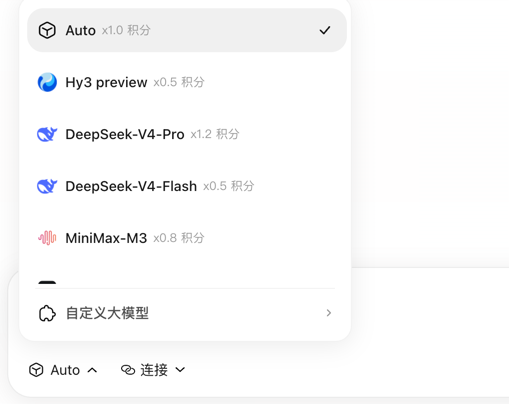
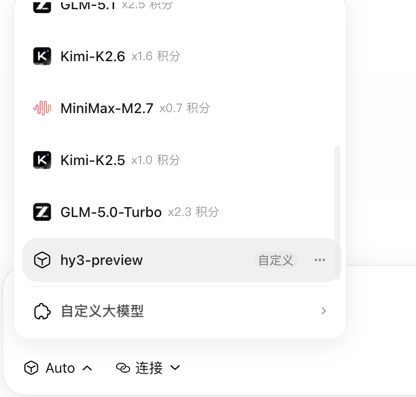
- Open the QClaw panel, click the model selection button in the dialog box, and then click Custom Large Model.
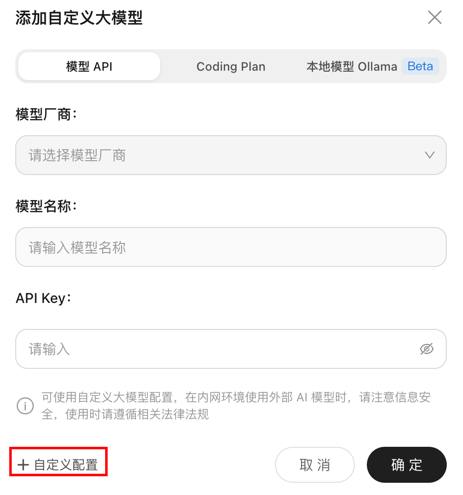
- Click Custom Configuration.
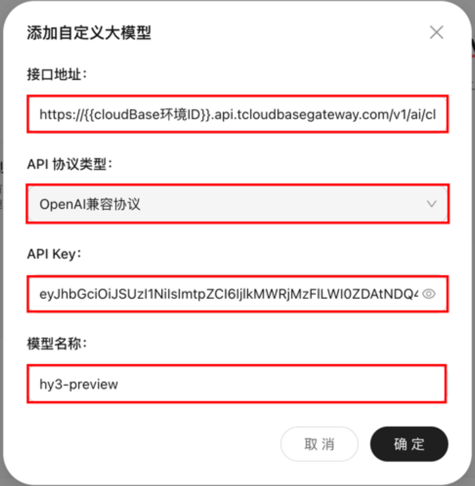
- In the displayed Add Custom Large Model dialog box, fill in the following form information:
| Field | Description | Example Value |
|---|---|---|
| Interface Address | The request address (Base URL) for the large model API, which is obtained in the AI console and has the format https://{{cloudBaseEnvID}}.api.tcloudbasegateway.com/v1/ai/cloudbase. | https://your-env-id.api.tcloudbasegateway.com/v1/ai/cloudbase |
| API Protocol Type | The API protocol type. Select OpenAI-Compatible Protocol. | OpenAI-Compatible Protocol |
| API Key | The key for calling the large model, which is obtained in the AI console. | eyJhbGciOiJSUzI1N... |
| Model Name | The identifier of the large model to be used. Copy the ID of an enabled model from the model list in the AI console and enter it here. | hy3 |
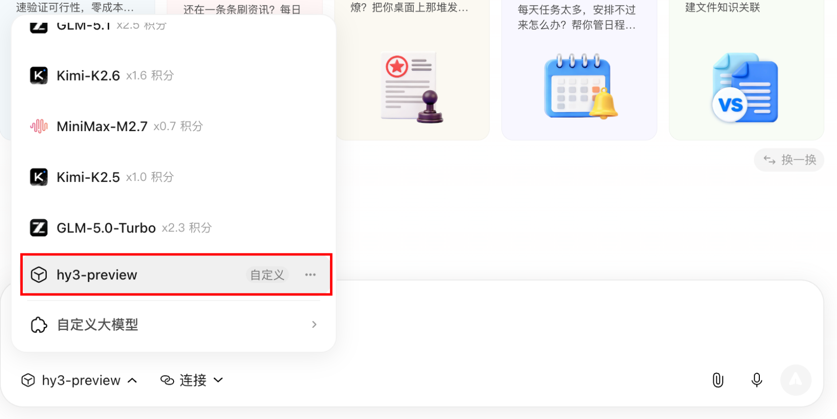
- After completing the form, click OK to save the configuration and start using it.
- Open the configuration file.
note
If you use your file browser to locate files, note that the file browser hides files with names starting with a period (.) by default. You may need to enable the hidden files option in your file browser to view them.
On macOS, use the Finder shortcut Command + Shift + . to show hidden files. On Windows, you can select "File Explorer - View - Show - Hidden items".
Open.
- Configuration Path for Windows
C:\Users\<YourUsername>\.qclaw\openclaw.json
- Configuration Path for Mac/Linux
~/.qclaw/openclaw.json
- Enter the configuration.
Open the openclaw.json file and add a custom large model provider (e.g., cloudbase) under the models.providers field. The meanings of each field are as follows:
| Field | Description |
|---|---|
| baseUrl | The request address (Base URL) for the large model API. Obtain it from the AI console. The format is https://{{cloudBaseEnvID}}.api.tcloudbasegateway.com/v1/ai/cloudbase. |
| apiKey | The key (API Key) for calling the large model, which is obtained in the AI console. |
| api | The API protocol type. Enter openai-completions to use the OpenAI-compatible protocol. |
| models.id | The large model identifier. Copy the ID of an enabled model from the model list in the AI console and enter it here. |
| models.name | The display name of the model, which can be customized. It is generally recommended to keep it consistent with models.id. |
Configuration example:
{
  "models": {
    "providers": {
      "cloudbase": {
        "baseUrl": "https://{{cloudBaseEnvID}}.api.tcloudbasegateway.com/v1/ai/cloudbase",
        "apiKey": "eyJhbGciOiJSUzI1N...",
        "api": "openai-completions",
        "models": [
          {
            "id": "hy3",
            "name": "hy3"
          }
        ]
      }
    }
  }
}
- Restart QClaw, and then select the newly added custom model in the model dialog box.
Common Error Troubleshooting
| Error Message | Solution |
|---|---|
| All models are temporarily rate-limited. Please try again in a few minutes. | The Base URL is incorrect. Go to the AI console to copy the correct Base URL. An incorrect large model ID is configured, and the large model is not enabled in the AI console. |
401 gent failed before reply: 401 status code | The API Key is entered incorrectly or may have been deleted. |