Implementing Horizontal Text Loop Scrolling
In many scenarios where notifications, announcements, or important information need to be displayed, horizontal loop scrolling text effects can effectively attract user attention. This document mainly introduces how to implement horizontal text loop scrolling functionality in WeDa using basic components and custom styles.
Application Scenarios
- Homepage announcement scrolling display
- Product promotion information carousel
- System notification message scrolling
- Marquee effect implementation
Implementation Effect
Achieve a text scrolling effect from right to left continuously in a loop, with seamless connection from the beginning when the text reaches the end.
Implementation Steps
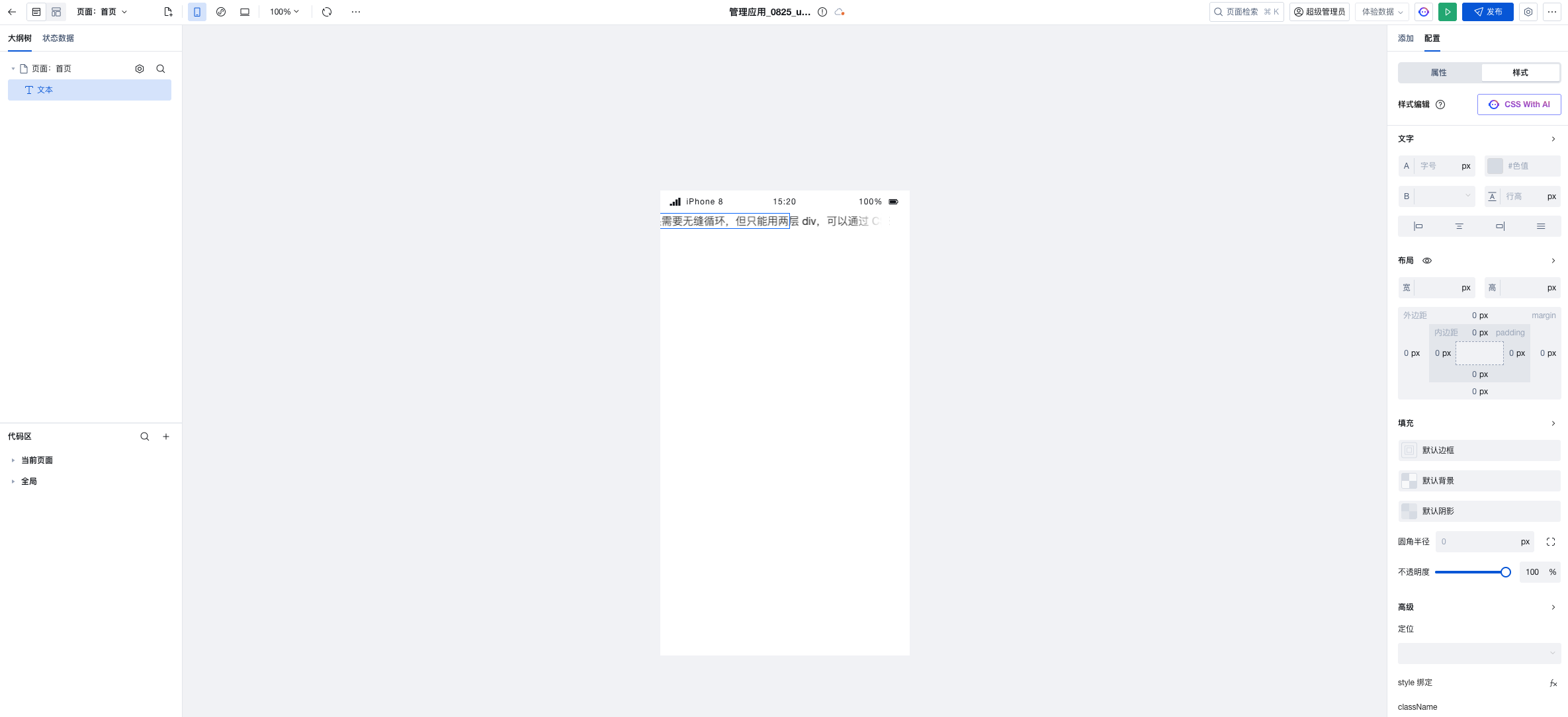
1. Add Text Component
Add a "Container" component to the page as the container for the scrolling area, and set the styles:
- Layout: Set container width to 100% or fixed width
- Overflow: Set horizontal overflow to
hidden(hide overflowing content) - Other Styles: Can set background color, padding, etc.
2. Set Custom Styles for Text Component
Set the following styles for the text component:
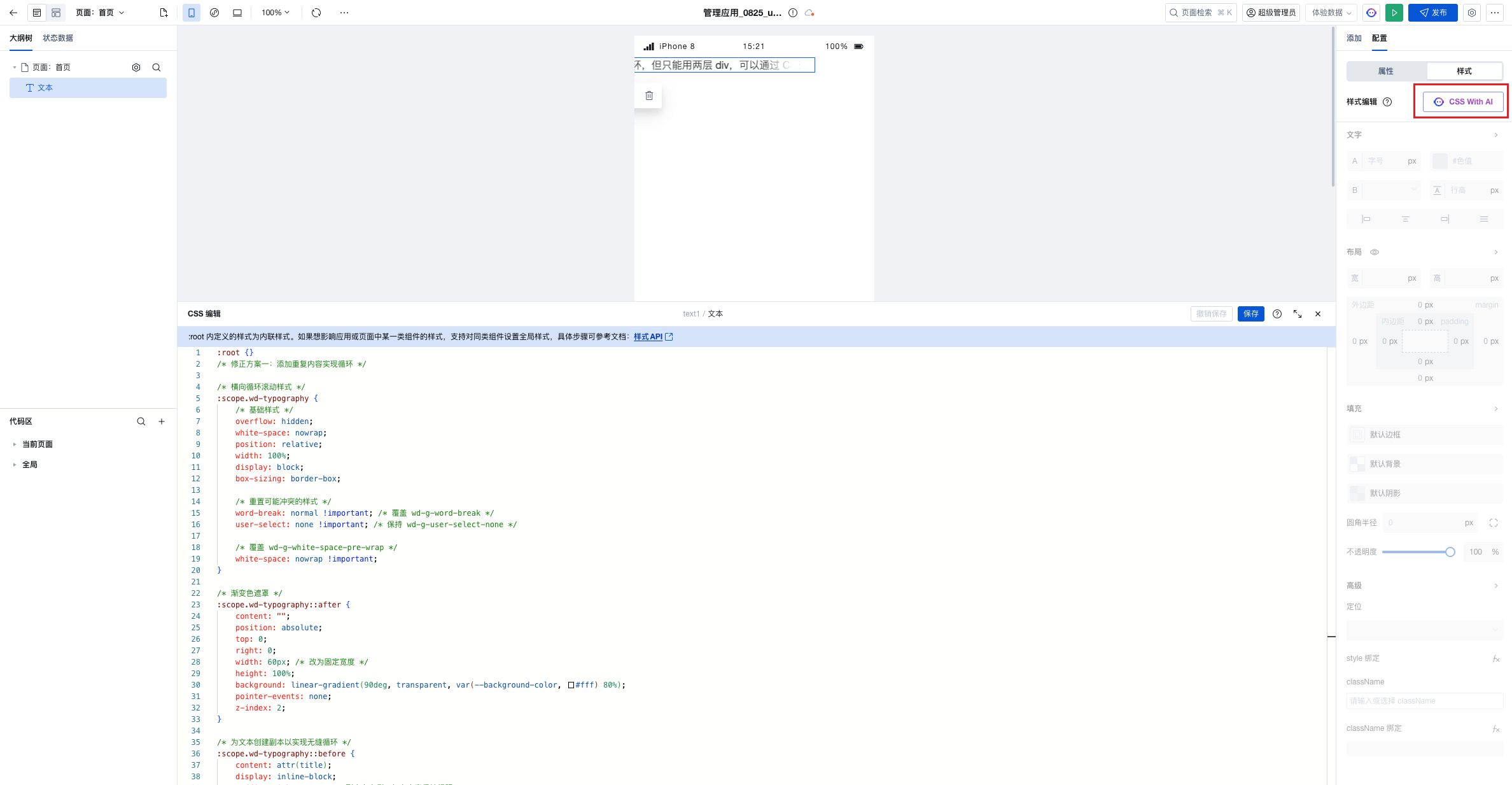
/* Horizontal loop scrolling styles */
:scope.wd-typography {
    /* Base styles */
    overflow: hidden;
    white-space: nowrap;
    position: relative;
    width: 100%;
    display: block;
    box-sizing: border-box;

    /* Reset potentially conflicting styles */
    word-break: normal !important; /* Override wd-g-word-break */
    user-select: none !important; /* Keep wd-g-user-select-none */

    /* Override wd-g-white-space-pre-wrap */
    white-space: nowrap !important;
}

/* Gradient mask */
:scope.wd-typography::after {
    content: "";
    position: absolute;
    top: 0;
    right: 0;
    width: 60px; /* Change to fixed width */
    height: 100%;
    background: linear-gradient(90deg, transparent, var(--background-color, #fff) 80%);
    pointer-events: none;
    z-index: 2;
}

/* Create text copy for seamless loop */
:scope.wd-typography::before {
    content: attr(title);
    display: inline-block;
    padding-right: 40px; /* Copy on the right side, keep spacing with main content */
    white-space: nowrap;
}

/* Animation */
:scope.wd-typography {
    animation: wd-text-marquee 20s linear infinite;
    -webkit-animation: wd-text-marquee 20s linear infinite;
}

/* Define animation */
@keyframes wd-text-marquee {
    0% {
        transform: translateX(0);
    }
    100% {
        transform: translateX(-50%); /* Move 50% because of the copy */
    }
}

@-webkit-keyframes wd-text-marquee {
    0% {
        -webkit-transform: translateX(0);
        transform: translateX(0);
    }
    100% {
        -webkit-transform: translateX(-50%);
        transform: translateX(-50%);
    }
}

/* Pause on mouse hover */
:scope.wd-typography:hover {
    animation-play-state: paused;
    -webkit-animation-play-state: paused;
}
Parameter Description:
-
Base Style Settings:
white-space: nowrap: Force text to not wrap, keeping it on one linedisplay: inline-block: Set as inline-block element, making width determined by contentmin-width: 100%: Ensure minimum width fills the container, avoiding content that's too shortposition: relative: Relative positioning, providing positioning reference for pseudo-elementsoverflow: visible: Allow content overflow to be visible, preventing clipping
-
Starting Position:
padding-left: 100%: Make text start from outside the right side of the container, achieving right-to-left scrolling effect
-
Animation Settings:
animation: wd-text-marquee 20s linear infinite: Apply scrolling animationwd-text-marquee: Animation name20s: Animation duration, can be adjusted based on text length, longer time means slower scrollinglinear: Uniform motion, maintaining constant speedinfinite: Infinite loop playback
-
Seamless Loop Implementation:
::before { content: attr(title) }: Use pseudo-element to duplicate text content, creating a copypadding-right: 40px: Maintain spacing between copy and main contenttransform: translateX(-50%): Move 50% (because of the copy, total width is doubled), achieving seamless loop
-
Interaction Optimization:
animation-play-state: paused: Pause animation on mouse hover (optional feature)-webkit-prefix: Compatible with WebKit browsers (Safari, Chrome, etc.)
6. Preview Effect
After saving, preview the page to see the text scrolling continuously from right to left.
Advanced Techniques
1. Dynamically Update Scrolling Content
If you need to dynamically update the scrolling text content, you can bind variables:
- Create a regular variable
noticeText, with the default value being the text to scroll - Bind the text component content to variable
$w.page.dataset.state.noticeText - Update content through variable assignment action
2. Multiple Message Carousel Scrolling
If you have multiple messages that need to be displayed in carousel:
- Create array variable
noticeListto store multiple messages - Use timer to periodically switch the currently displayed message
- Combine scrolling animation to implement carousel effect for multiple messages
Example code:
// In onPageLoad
let currentIndex = 0;
const noticeList = ['Announcement 1: ...', 'Announcement 2: ...', 'Announcement 3: ...'];

// Switch message every 5 seconds
setInterval(() => {
  currentIndex = (currentIndex + 1) % noticeList.length;
  $w.page.dataset.state.noticeText = noticeList[currentIndex];
}, 5000);
3. Add Icons or Decorations
Add icon components (such as megaphone icons) before the text to enhance visual effects:
- Add icon component in the container
- Set icon to absolute positioning, fixed on the left side
- Adjust the text component's
padding-leftto reserve space for the icon
3. Responsive Adaptation
Adjust scrolling speed for different screen sizes:
/* Speed up scrolling on mobile */
@media (max-width: 768px) {
  .scroll-text {
    animation: scroll-left 10s linear infinite;
  }
}
Frequently Asked Questions
1. Text scrolling is discontinuous with blank spaces appearing?
Cause: Text length is insufficient or animation time is set improperly.
Solution:
- Solution 1: Ensure
padding-left: 100%is set in CSS - Solution 2: Duplicate text content in code to ensure text length is sufficient
2. Scrolling speed is too fast or too slow?
Solution: Adjust the time parameter in animation (such as 15s), longer time means slower scrolling
3. Not working in Mini Program?
Note: Ensure custom style code is added in global styles, Mini Program supports CSS animation effects
4. Text stuttering when scrolling?
Optimization Suggestions:
- Use CSS animation approach (GPU acceleration)
- Reduce other animation effects on the page
- Avoid complex data operations during scrolling