MySQL Migration to User Account
CloudBase MySQL database is deployed on the "CloudBase side" by default. We now support migrating the database from the "CloudBase side" to your "own account". After migration, the database will be deployed under your own Tencent Cloud account, bringing the following advantages:
- Internal Network Connection Support: You can connect to the database through VPC internal network, supporting Cloud Functions direct connection
- Higher Performance: Internal network connections have lower latency and better performance
- Stronger Security: The database is under your account, with more thorough resource isolation
- Flexible Management: You can manage database instances directly through the Tencent Cloud console
⚠️ Important Note:
- Before migration, the database is under the CloudBase official account and only supports public network connection
- After migration, the database is under your account and supports VPC internal network connection
- The migration process requires backing up data first, then reinstalling the database
Pre-migration Preparation
Before starting the migration, please confirm:
- Data Backup: A complete backup of the database has been completed
- Business Impact Assessment: Understand that the database will be temporarily unavailable during the migration process
- Permission Confirmation: Ensure your Tencent Cloud account has permission to create MySQL instances
- Connection Method Adjustment: After migration, you need to modify the database connection configuration in your application
Migration Process
Step 1: Backup Data
Before migration, you must backup existing data to avoid data loss.
1.1 Log in to DMC Platform
Refer to the Database Management documentation to log in to the DMC platform.
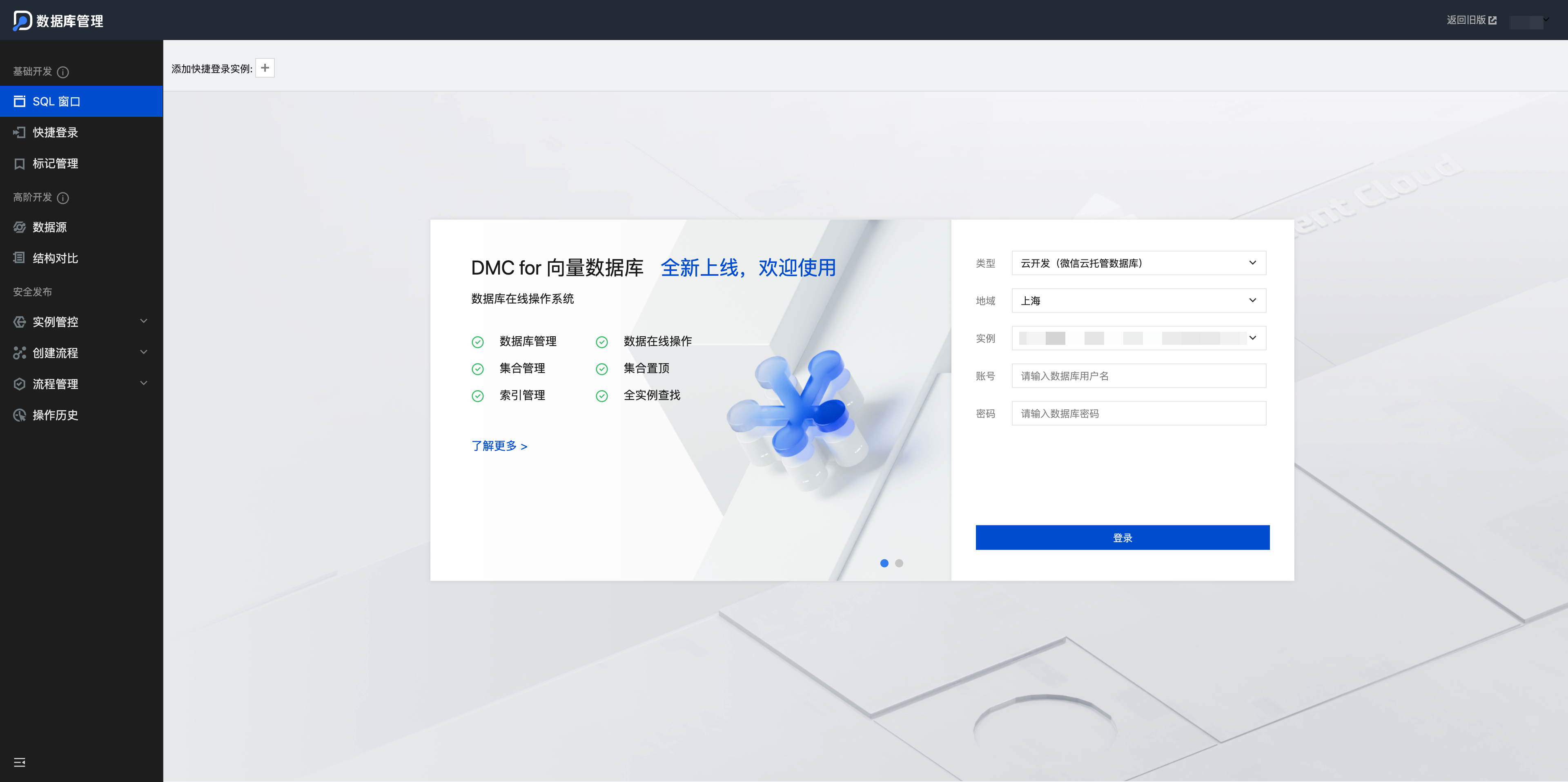
💡 Tip: If you cannot select the instance normally in the DMC platform, please go to CloudBase Platform / MySQL Database / Database Settings, click "Direct Connection Service", and submit a ticket as prompted.
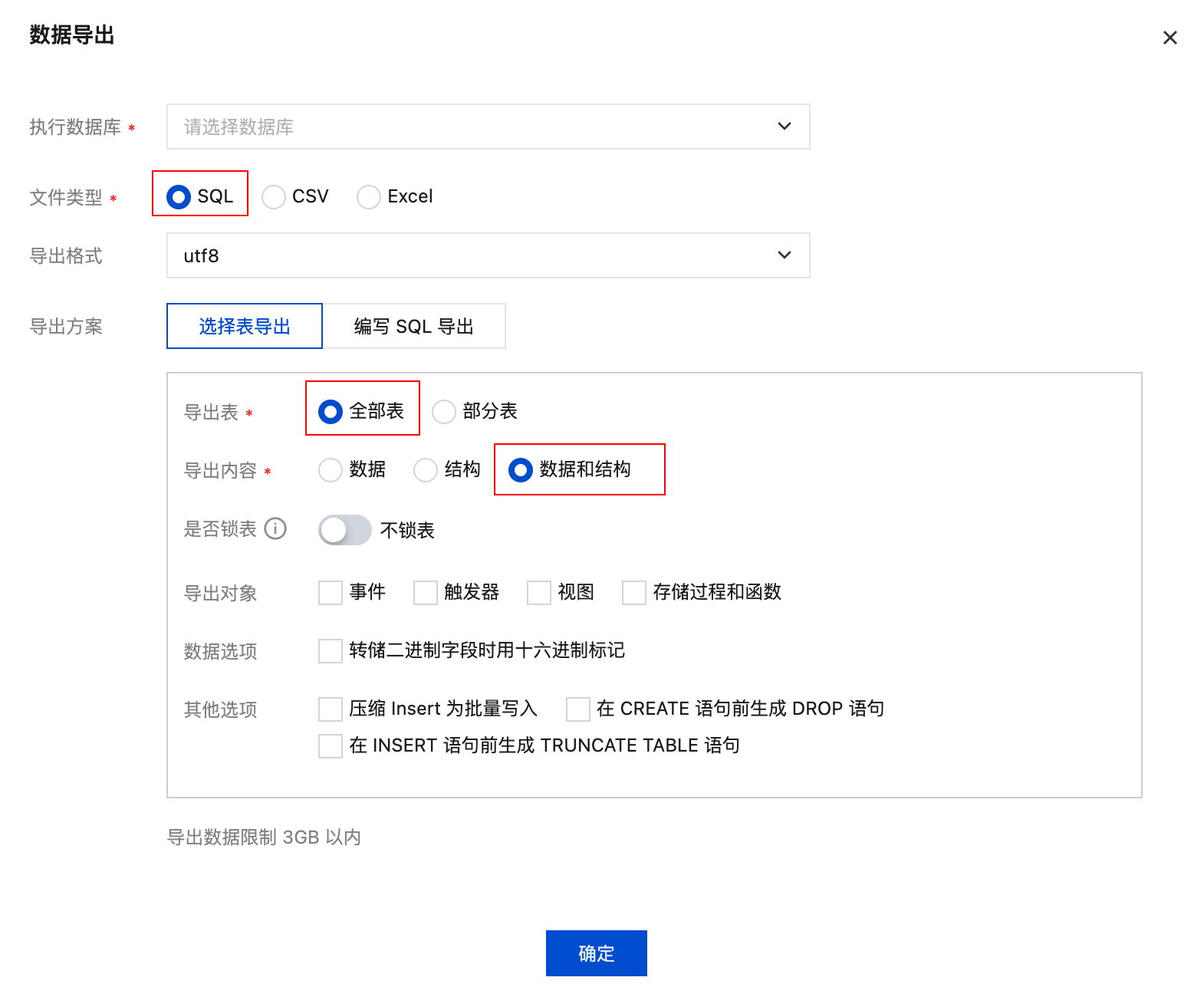
1.2 Export Table Structure and Data
- In the DMC platform, click "Floating Tools" and select "Import and Export"
- Click "Data Export"
- Select the database named after the "current environment ID"
- Select file type as SQL
- Select table export, export content select Data and Structure
- Click the "Confirm" button to export table structure and data (in zip format)
- Unzip to get the
.sqlfile
⚠️ Important Reminder:
- Please keep the exported SQL file safe, this is your data backup
- If the data volume is large, it's recommended to export in batches
- Ensure the export is complete before proceeding to the next step
Step 2: Uninstall Database
After completing the backup, you need to uninstall the current MySQL database.
- Go to CloudBase Platform / MySQL Database / Database Settings
- Click the "Destroy Database" button in the upper right corner
- Confirm the destroy operation
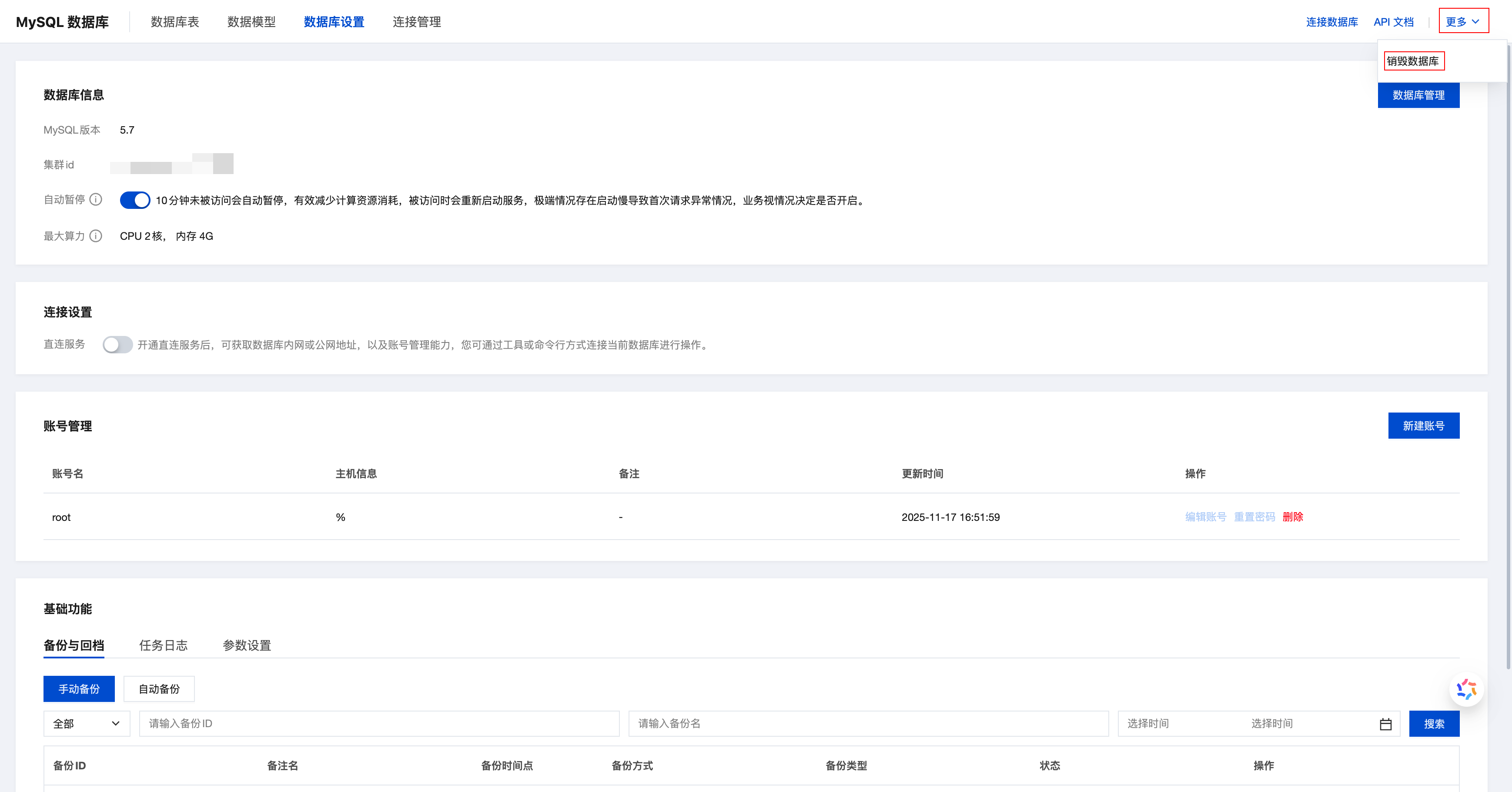
⚠️ Warning: After destroying the database, all data in the original database will be cleared. Please ensure data backup is complete.
Step 3: Reinstall Database
After uninstallation, reinstall the MySQL database. This installation will create a database instance under your account.
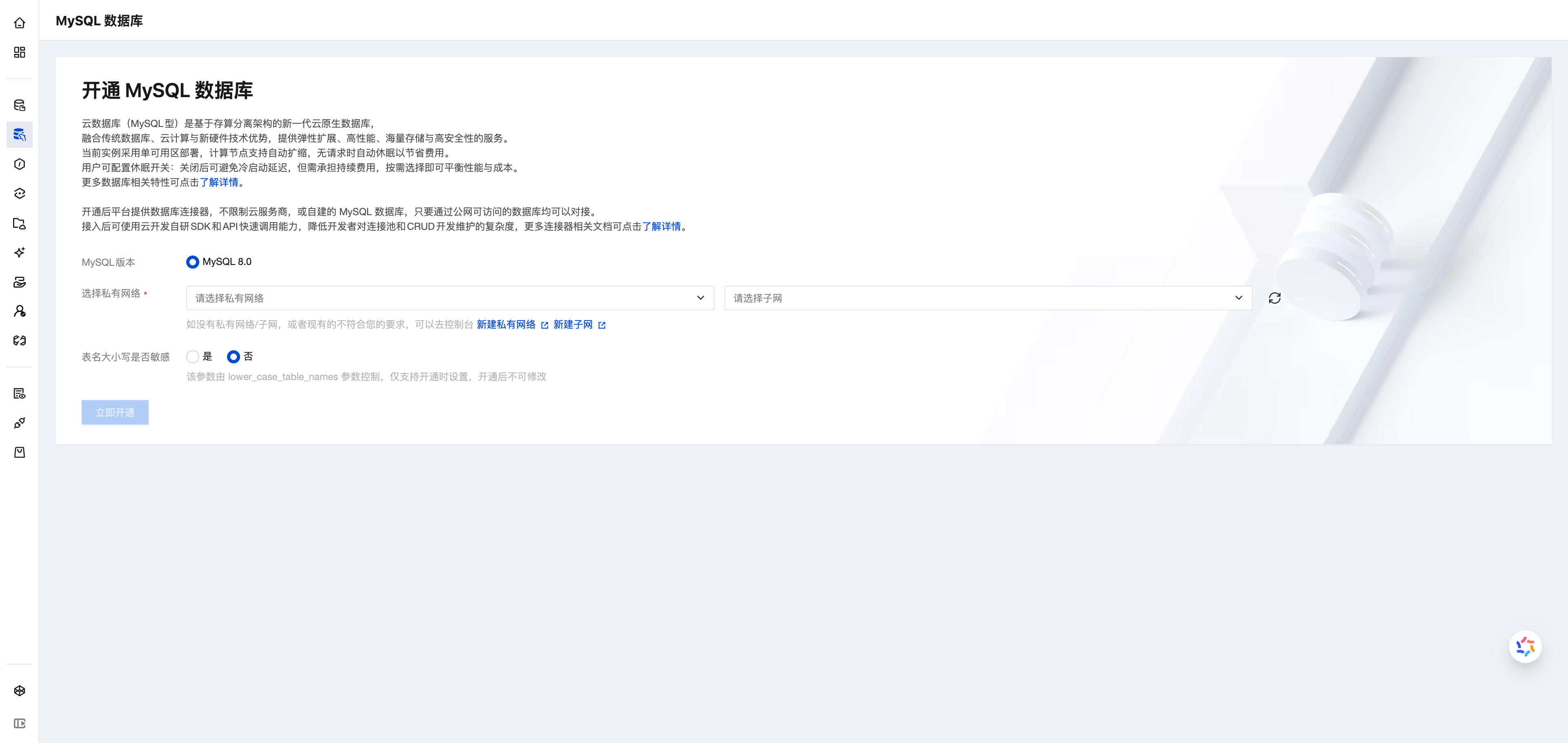
- On the CloudBase Platform / MySQL Database page
- Click the "Activate MySQL Database" button
- Select MySQL version (8.0 recommended)
- Key Step: Select Virtual Private Cloud (VPC) and subnet
- To connect Cloud Functions via internal network, select the VPC where Cloud Functions are located
- It's recommended to select the same VPC as other cloud resources for convenient internal network interconnection
- Confirm activation
💡 Tip:
- After activation, the database will be deployed under your Tencent Cloud account
- The system will automatically generate the default table structure
- The database's internal network connection address will be displayed on the "Database Settings" page
Step 4: Import Data
After the database is reinstalled, import the previously backed up data.
4.1 Log in to DMC Platform
Refer to Step 1.1 to log in to the DMC platform.
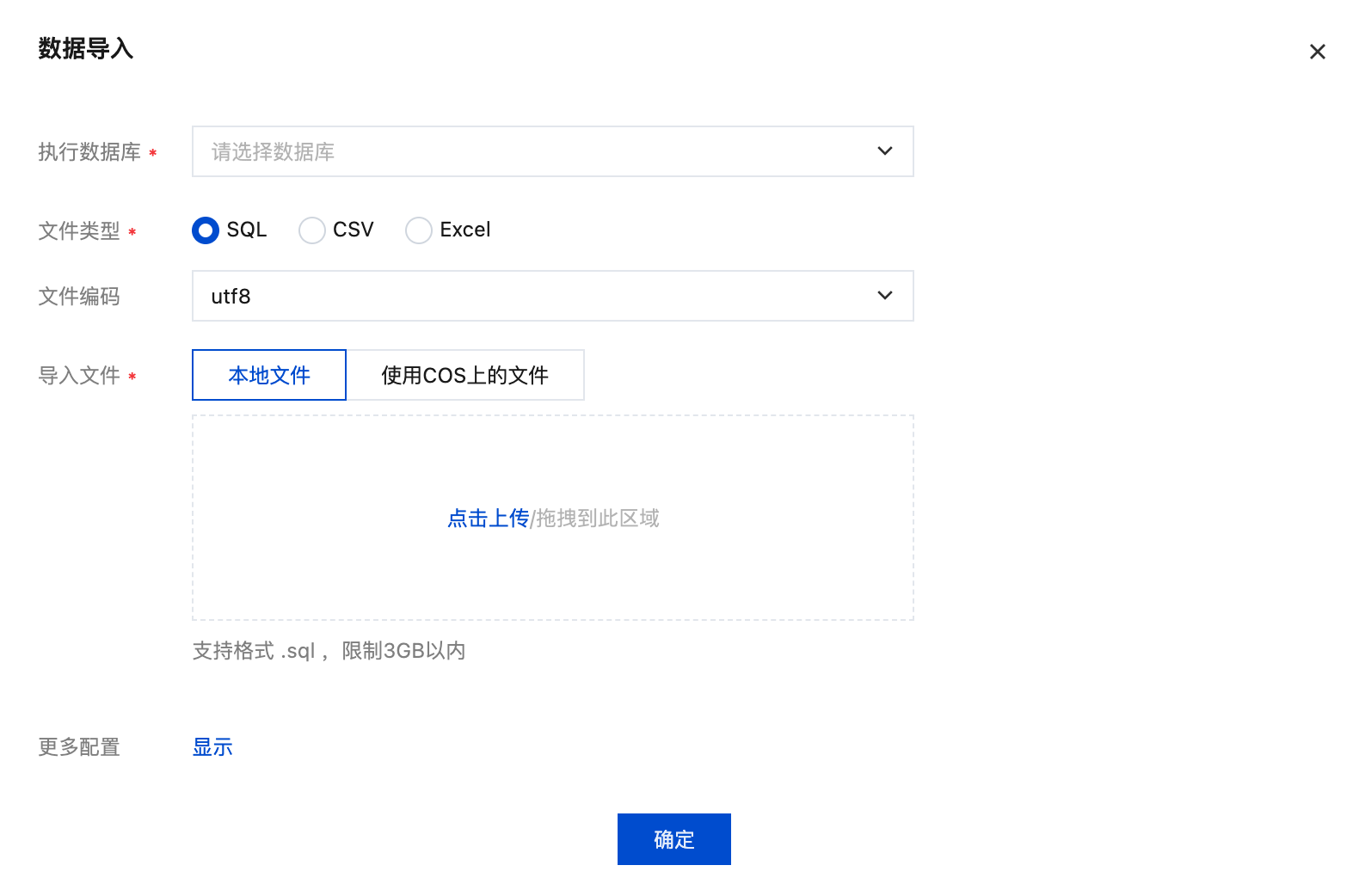
4.2 Import Table Structure and Data
- Click "Floating Tools" and select "Import and Export"
- Click "Data Import"
- Select the database named after the "current environment ID"
- Select file type as SQL
- Upload the
.sqlfile exported in Step 1 - Click "Confirm" to start importing
💡 Tip:
- After successful import, data migration is complete
- Deleted data models need to be manually rebuilt
- It's recommended to verify data integrity after import
Complete Migration Example
Below is a summary of the complete migration process, which can serve as an operation checklist:
✓ Step 1: Backup Data
  ├─ Log in to DMC platform
  ├─ Export table structure and data (SQL format)
  └─ Verify SQL file integrity

✓ Step 2: Uninstall Database
  ├─ Go to database settings page
  └─ Destroy current database

✓ Step 3: Reinstall Database
  ├─ Select MySQL version
  ├─ Configure VPC and subnet
  └─ Confirm activation

✓ Step 4: Import Data
  ├─ Log in to DMC platform
  ├─ Import SQL file
  └─ Verify data integrity

✓ Step 5: Configure Internal Network Connection (Optional)
  ├─ Get internal network connection address
  ├─ Configure Cloud Function VPC
  └─ Update database connection code
Notes
Data Security
- Be sure to completely backup data before migration, it's recommended to keep multiple backup copies
- Exported SQL files contain sensitive data, please keep them safe
- The database is unavailable during migration, it's recommended to perform during off-peak business hours
Application Adjustments
- After migration, you need to update the database connection address in your application
- Change from public network address to internal network address
- It's recommended to use environment variables to manage database connection configuration
Performance Optimization
- Internal network connection latency is typically 1-5ms, much lower than public network connection
- It's recommended to use connection pools to improve database operation performance
- For detailed performance optimization methods, please refer to Cloud Functions / Call MySQL Database / Best Practices
Common Issues
Cloud Function Cannot Connect to Database?
Please check the following configurations:
- Is the Cloud Function configured with the correct VPC and subnet
- Is the VPC consistent with the VPC where the database is located
- Is the database connection address using the internal network address
- Are the Cloud Function environment variables configured correctly
Related Documentation
- Database Management - DMC Platform User Guide
- Cloud Functions / Call MySQL Database - Cloud Functions internal network connection to database
- Cloud Hosting / Call MySQL Database - Cloud Hosting internal network connection to database
- CloudBase Resource Migration Guide - Complete environment migration guide
- MySQL Version Upgrade - Database version upgrade operation