Connect Your Own MySQL
You can connect your own MySQL database to the CloudBase platform, reuse existing database resources, and reduce data migration costs.
After connecting your own database, you can:
- Seamless Integration: Directly manage data in your existing database without data migration
- Data Models: Quickly generate data models based on existing tables for automated data management
- SDK Support: Unified access using CloudBase Web SDK / Node SDK / Mini Program SDK
- Secure and Controllable: Data remains in your database with full control over data security
Prerequisites
Before configuring your own MySQL database connection, please ensure:
| Check Item | Requirements |
|---|---|
| Network Access | Database has public network access capability |
| User Permissions | Dedicated database user account has been created with table operation permissions |
| Firewall Configuration | Database firewall has opened the corresponding port (default 3306) |
| IP Whitelist | CloudBase service IP whitelist has been configured (see end of document) |
Create Connection Configuration
1. Access Configuration Page
Visit CloudBase Platform/MySQL Database, click the "Add" button at the top

2. Fill in Connection Information
| Parameter | Description | Required |
|---|---|---|
| Database Type | Select "MySQL" or "SQLServer" (SQLServer requires ticket application) | Yes |
| Configuration Name | Custom name for identifying this connection in the platform | Yes |
| Configuration Identifier | English identifier for specifying the connection in SDK (e.g., my-database) | Yes |
| Access Method | Select "Own Database" or "Tencent Cloud Database" | Yes |
| Host Address | Public IP address or domain name of the MySQL database | Yes |
| Port | MySQL service port (default 3306) | Yes |
| Database Name | Target database name to connect | Yes |
| Username | Database connection username | Yes |
| Password | Database connection password | Yes |
| Connection Parameters | Additional MySQL connection parameters (e.g., charset=utf8mb4) | No |
| Timeout | Connection and query timeout (unit: seconds) | No |
To connect a "SQLServer Database", please contact Tencent architect or submit a ticket for application.
Usage Methods
After connecting your own MySQL database, you can operate data in the following two ways.
Method 1: Direct Database Table Operations
Perform CRUD operations directly through SDK
- Mini Program
- Web
- Node.js
// Import SDK
const { init } = require("@cloudbase/wx-cloud-client-sdk");

// Specify CloudBase environment ID
wx.cloud.init({
  env: "your-env-id", // Replace with your environment ID
});

const client = init(wx.cloud);

// Connect to your own database instance
const db = client.rdb({
  instance: "my-database", // Configuration identifier (identifier filled when creating the connection)
  database: "test", // Database name
});

// Query data
const { data, error } = await db
  .from("users")
  .select("*")
  .eq("status", "active");

if (error) {
  console.error("Query failed:", error);
} else {
  console.log("Query result:", data);
}
// Import SDK
import cloudbase from "@cloudbase/js-sdk";

const app = cloudbase.init({
  env: "your-env-id", // Replace with your environment ID
  region: "ap-shanghai", // Default is ap-shanghai if region is not specified
});

// Login authentication
const auth = app.auth();
await auth.signInAnonymously(); // Or use other login methods

// Connect to your own database instance
const db = app.rdb({
  instance: "my-database", // Configuration identifier (identifier filled when creating the connection)
  database: "test", // Database name
});

// Query data
const { data, error } = await db
  .from("users")
  .select("*")
  .eq("status", "active");

if (error) {
  console.error("Query failed:", error);
} else {
  console.log("Query result:", data);
}
// Import SDK
const cloudbase = require("@cloudbase/node-sdk");

const app = cloudbase.init({
  env: "your-env-id", // Replace with your environment ID
});

// Connect to your own database instance
const db = app.rdb({
  instance: "my-database", // Configuration identifier
  database: "test", // Database name
});

// Query data
const { data, error } = await db
  .from("users")
  .select("id, name, email")
  .eq("status", "active")
  .limit(10);

console.log(data);
Method 2: Using Data Models
Suitable for scenarios requiring structured data management, automatic validation, relational queries, etc.
1. Create Data Model
Visit CloudBase Platform/MySQL Database/Connection Management, click "Data Model" on the corresponding connection configuration
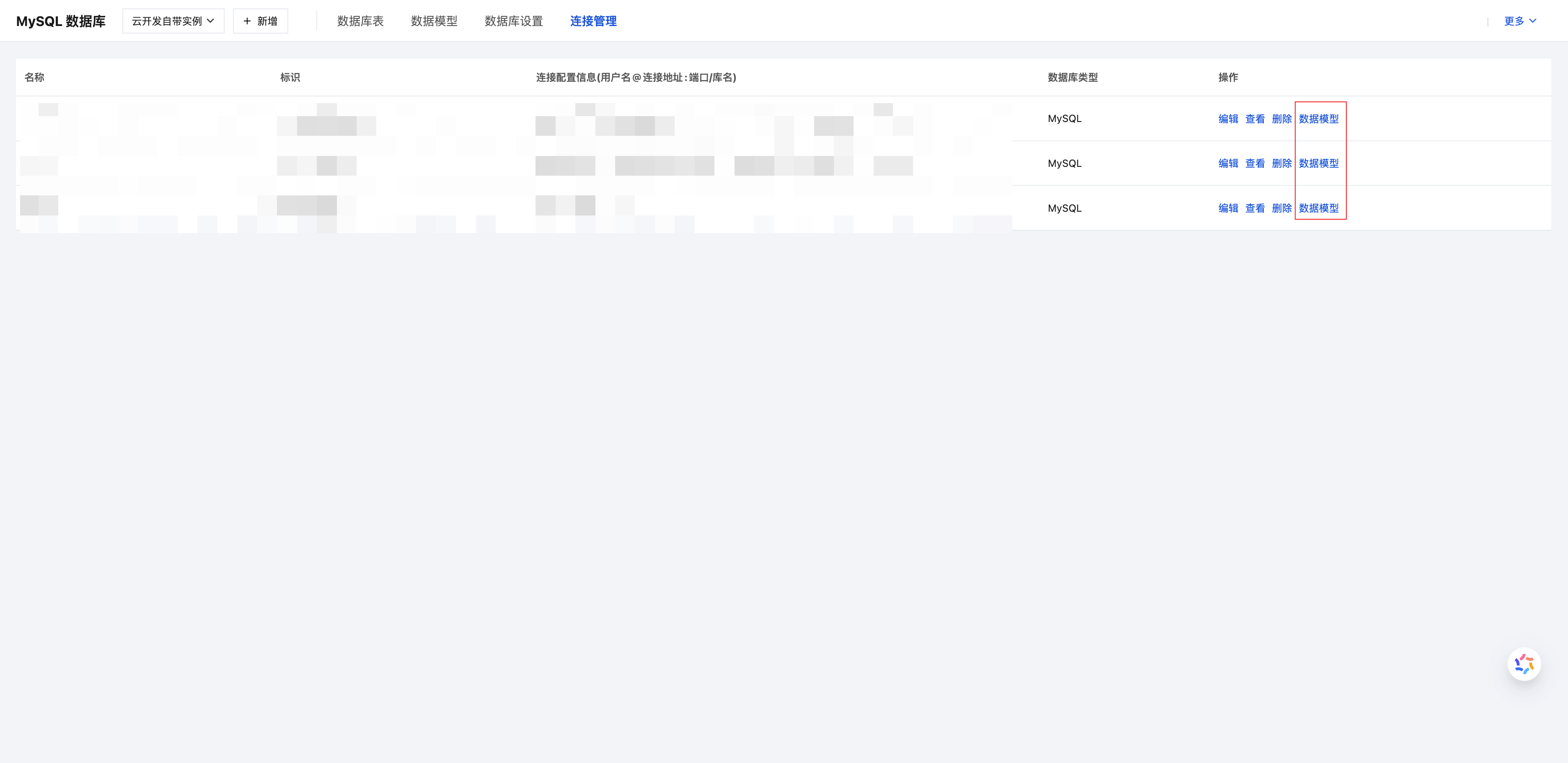
Select an existing data table, and the system will automatically generate the corresponding data model.
2. Operate Data Models
- Mini Program
- Web
- Node.js
// Import SDK
const { init } = require("@cloudbase/wx-cloud-client-sdk");

wx.cloud.init({
  env: "your-env-id", // Replace with your environment ID
});

const client = init(wx.cloud);
const models = client.models;

// Create data (assuming the todos model has been created)
const { data, error } = await models.todos.create({
  data: {
    title: "Learn CloudBase",
    completed: false,
  },
});

// Query data
const todos = await models.todos.findMany({
  where: {
    completed: false,
  },
  orderBy: {
    createdAt: "desc",
  },
});

console.log(todos);
// Import SDK
import cloudbase from "@cloudbase/js-sdk";

const app = cloudbase.init({
  env: "your-env-id", // Replace with your environment ID
  region: "ap-shanghai",
});

// Login authentication
const auth = app.auth();
await auth.signInAnonymously();

// Create data (assuming the todos model has been created)
const { data, error } = await app.models.todos.create({
  data: {
    title: "Learn CloudBase",
    completed: false,
  },
});

// Query data
const todos = await app.models.todos.findMany({
  where: {
    completed: false,
  },
  orderBy: {
    createdAt: "desc",
  },
});

console.log(todos);
const cloudbase = require("@cloudbase/node-sdk");

const app = cloudbase.init({
  env: "your-env-id", // Replace with your environment ID
});

// Create data
const { data } = await app.models.todos.create({
  data: {
    title: "Learn CloudBase",
    completed: false,
  },
});

// Update data
await app.models.todos.update({
  where: {
    id: data.id,
  },
  data: {
    completed: true,
  },
});
For detailed usage, please refer to Data Model Documentation
IP Whitelist Configuration
To ensure database security, please add the following CloudBase service IP addresses to your MySQL database whitelist:
175.24.211.44
175.24.212.162
175.24.213.48
175.24.214.104
175.24.214.93
49.234.25.245
49.234.27.58
49.234.3.160
49.234.34.31
49.234.35.33
- All IP addresses must be added to ensure normal service operation
- Whitelist configuration methods vary among cloud service providers, please refer to the corresponding database management documentation
FAQ
How to troubleshoot connection failures?
Troubleshoot step by step:
- Network Connectivity: Confirm the database is accessible via public network
- Firewall Configuration: Check if the database port is open
- IP Whitelist: Confirm all CloudBase service IPs have been added
- Connection Parameters: Check if host address, port, database name, username, and password are correct
Does it support intranet databases?
Currently only databases with public network access capability are supported. To connect to intranet databases, consider:
- Access via public proxy provided by cloud service provider
- Use VPN or dedicated line to connect networks
- Use Tencent Cloud Database (supports direct intranet connection)
Will data be synchronized to CloudBase?
No. After connecting your own database:
- Data Storage: All data remains in your database
- Access Method: CloudBase SDK directly connects to your database for operations
- Data Control: You have full control over data storage and backup