MiniMax Code Setup Guide
MiniMax Code is MiniMax's AI coding product. Both the desktop app and the terminal CLI install CloudBase from the plugin marketplace.
They share the same plugin (id: cloudbase) - only the install entry differs:
| Form | Plugin entry | How to install |
|---|---|---|
| MiniMax Code desktop app | Plugins → Market | Click Install in the market |
| MiniMax Code terminal CLI | mcode plugin | One command |
Once configured, you can operate CloudBase services directly from the MiniMax Code chat.
For example:
- "Build a WeChat mini-program ordering system with CloudBase" - AI scaffolds the pages, creates the document database, writes cloud functions and guides you through preview
- "Build a booking system where users place orders and the admin changes status" - AI models it on CloudBase PostgreSQL, configures permissions and wires up both ends
- "Add phone-number sign-in to a web app" - AI enables the auth method and wires in the CloudBase SDK
No switching to the cloud console - everything can be done in MiniMax Code with natural language.
Prerequisites
A CloudBase environment
MiniMax Code: for the desktop app, use a version with the plugin marketplace (left navigation Plugins → Market); for the terminal CLI, use a version that ships the mcode plugin command.
Node.js: the plugin's MCP service is launched locally with npx, so make sure Node.js v18.15.0 or later is installed:
node --version
If it is missing, download it from nodejs.org.
CloudBase environment: See Create an environment. New users on the domestic site can activate one for free.
This client ships CloudBase built in. Setup follows its own marketplace or connectors, and the site follows your login state — nothing to pick here.
Configure your AI tool to connect with CloudBase capabilities. Supports local and remote connection. See connection modes.
Step 1: Install / Configure CloudBase
Install from the plugin marketplace
1. Click Plugins in the left navigation 2. Switch to the Market tab at the top 3. Search `cloud` and find the Tencent CloudBase card 4. Click Install on the right of the card
Terminal CLI
mcode plugin add cloudbase@officialThis installs the official CloudBase plugin, which carries its own MCP service (`cloudbase-mcp`) and 31 skills. It registers itself, so there is no MCP config to write by hand.
Step 2: Chat with AI
Enter the following in your AI chat in order:
Read https://docs.cloudbase.net/skill.md and tell me what it can doUse CloudBase Skills: 在 CI 脚本里用 CloudBase CLI 完成一次批量部署发布MiniMax Code desktop app
- Open the MiniMax Code desktop app and click Plugins in the left navigation
- Switch to the Market tab at the top
- Type
cloudin the search box, or browse the list, to find the Tencent CloudBase card - Click Install on the right of the card
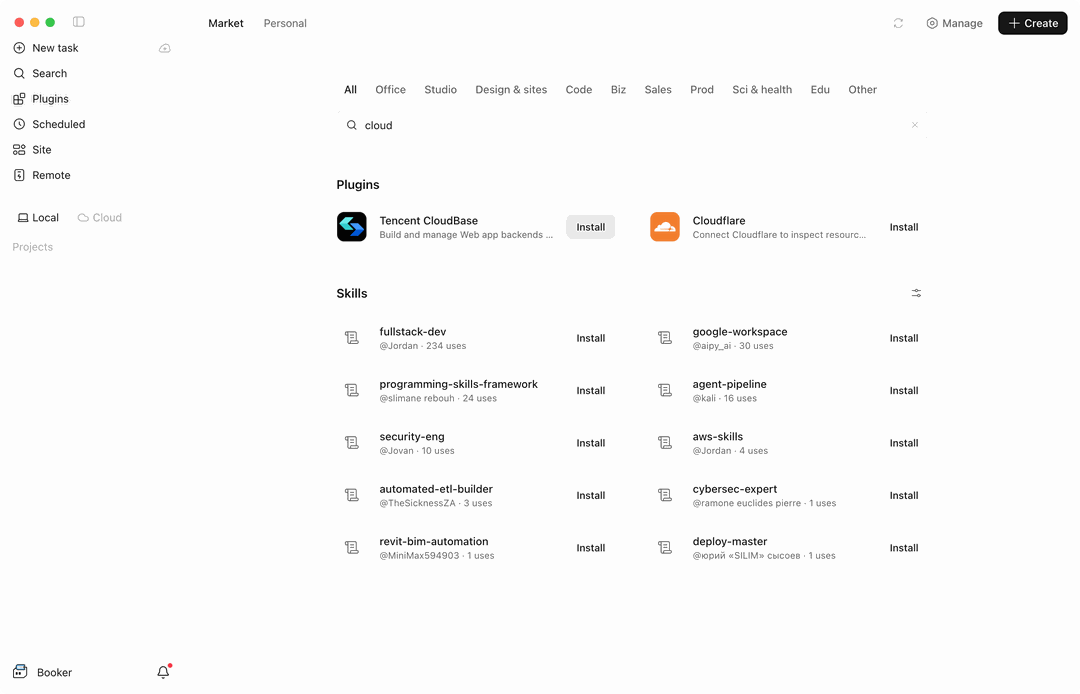
The Market page is split into a Plugins section and a Skills section. CloudBase lives in Plugins. Open the card to see what it contains: 1 MCP service (cloudbase-mcp) and 31 skills.
What you install is the official CloudBase plugin - the same plugin package that ships for other clients. It carries its own MCP service definition (cloudbase-mcp, launched locally by npx @cloudbase/cloudbase-mcp@latest) and registers it together with the skills. You never write an MCP config by hand - it works right after install.
The Market UI is in English. Its category chips are All, Office, Studio, Design & sites, Code, Biz, Sales, Prod, Sci & health, Edu and Other.
Once installed, all CloudBase capabilities are available in the chat.
MiniMax Code terminal CLI
The CLI uses the same plugin marketplace, and you can browse and install from the command line.
Install the CLI
curl -fsSL https://filecdn.minimax.chat/public/install.sh | bash
The installer bundles a private Node runtime, so no preinstalled Node.js is needed, and it does not use sudo. mcode lands in ~/.minimax-code/bin, and the installer adds that directory to your shell PATH (takes effect in a new terminal).
List the plugins available in the marketplace
mcode plugin list -m official --available
Install CloudBase
mcode plugin add cloudbase@official
Afterwards, mcode plugin list shows what is installed, and mcode plugin disable cloudbase / mcode plugin enable cloudbase toggle it.
The CLI and the desktop app share their configuration under
~/.minimax/. There are two plugin sources:official(the official registry) andlocal(a directory at~/.minimax/plugins).
Verify the connection
Type this in the chat:
检查 CloudBase 工具是否可用
Or ask for something concrete:
帮我查一下当前 CloudBase 环境的状态
FAQ
Q: I cannot find Tencent CloudBase in the Market.
A: Filter with cloud in the search box. If it is still missing, update MiniMax Code to the latest version that supports the Market.
Q: mcode is not found in my terminal.
A: The installer writes ~/.minimax-code/bin into your shell config; open a new terminal. In the current one you can run source ~/.zshrc.
Q: The plugin is installed but the tool count is 0. A: Check that Node.js is available on this machine and that the network connection is fine, then restart MiniMax Code and try again.
Q: The tool count shows 0. A: See FAQ.
More questions: full FAQ