Kimi Setup Guide
Kimi is Moonshot AI's AI assistant lineup. Both Kimi Code (terminal CLI) and Kimi Work (desktop app) support the CloudBase plugin.
They share the same plugin (id: cloudbase) — only the install entry differs:
| Product | Form | Plugin entry | MCP config path |
|---|---|---|---|
| Kimi Code | Terminal CLI | /plugins → Curated | ~/.kimi-code/mcp.json |
| Kimi Work | Desktop app | Settings → Plugins | Written by the plugin, no manual config |
Once configured, you can operate CloudBase services directly from the Kimi chat.
For example:
- "Build a WeChat mini-program ordering system with CloudBase" — AI scaffolds pages, creates the database, writes cloud functions, and guides you through preview
- "Build a booking system where users place orders and the admin changes status" — AI models it on CloudBase PostgreSQL, configures permissions, and wires up both ends
- "Add phone-number login to my web app" — AI enables the auth method and integrates the CloudBase SDK
No need to switch to the cloud console — everything happens in natural language inside Kimi.
Prerequisites
Node.js environment and a CloudBase environment
Version: Kimi Code requires a build with plugin marketplace support (/plugins available); Kimi Work requires a build with the Settings → Plugins panel.
Node.js: Make sure Node.js v18.15.0 or higher is installed:
node --version
If not, download it from the Node.js website.
CloudBase environment: See Create a CloudBase environment. New users on the domestic site can start for free.
Remote needs only a URL — your client walks you through browser authorization, so no keys land in config files.
Configure your AI tool to connect with CloudBase capabilities. Supports local and remote connection. See connection modes.
Step 1: Install / Configure CloudBase
Install from the plugin marketplace (recommended)
1. Type `/plugins` in Kimi Code to open the plugin panel 2. Switch to the Curated tab 3. Find Tencent CloudBase (id: `cloudbase`) and press Enter to select install 4. After install, restart Kimi Code or start a new chat
Manual MCP config (optional)
Edit `~/.kimi-code/mcp.json`:
Step 2: Chat with AI
Enter the following in your AI chat in order:
Read https://docs.cloudbase.net/skill.md and tell me what it can doUse CloudBase Skills: 用 cloudbaserc 的 envOverrides 配置多环境部署Kimi Code (Terminal CLI)
Install from the plugin marketplace (recommended)
Kimi Code ships a built-in plugin marketplace, and CloudBase is listed as a Curated plugin:
- Type
/pluginsin Kimi Code to open the plugin panel - Switch to the Curated tab
- Find Tencent CloudBase (id:
cloudbase) and press Enter to select install - After install it shows
installed · v0.x.x
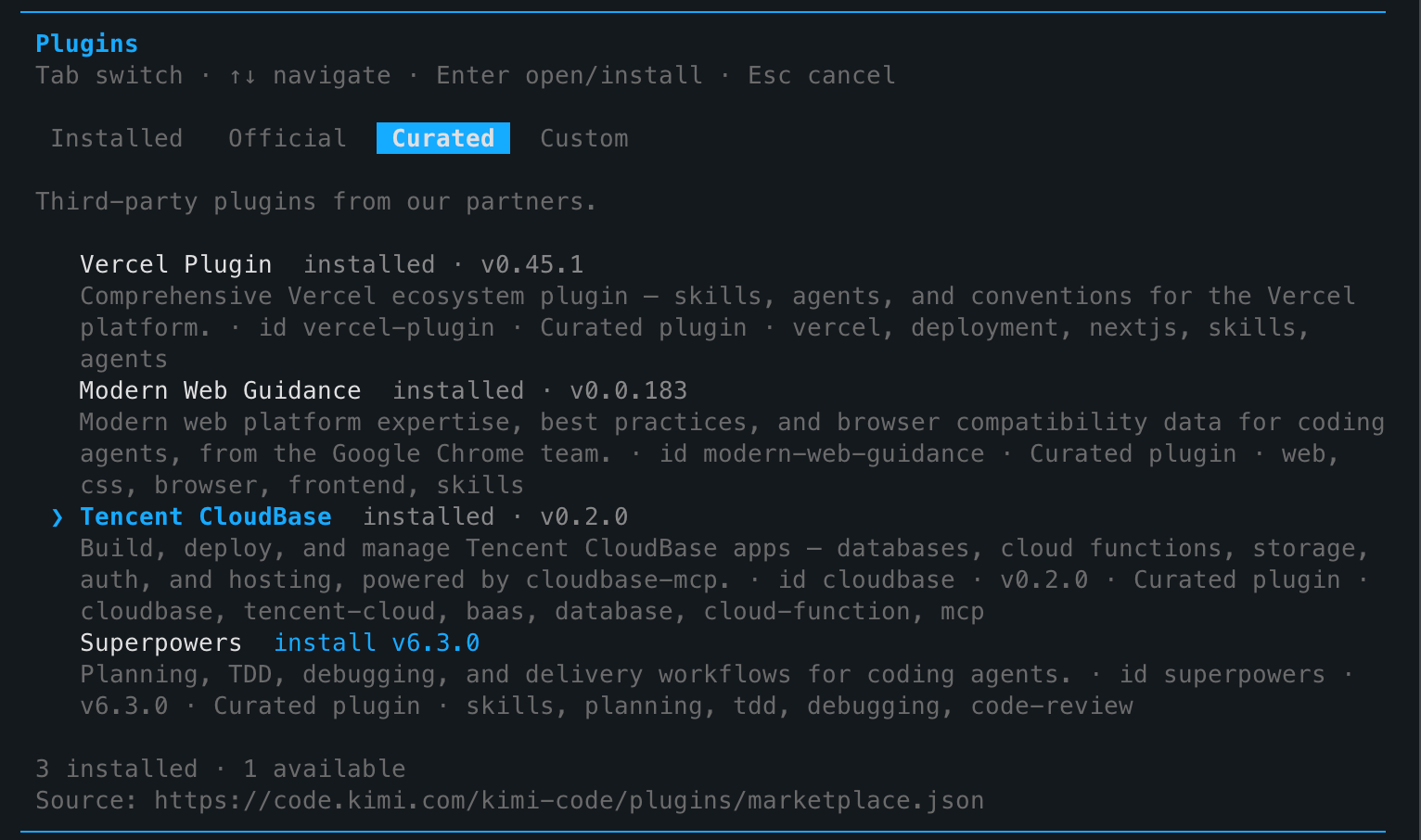
Marketplace source:
https://code.kimi.com/kimi-code/plugins/marketplace.json
Restart Kimi Code or start a new session and CloudBase's 29+ skills and MCP tools load automatically.
Configure MCP manually (optional)
For manual setup or debugging, edit Kimi Code's MCP config file ~/.kimi-code/mcp.json:
{
  "mcpServers": {
    "cloudbase": {
      "command": "npx",
      "args": ["-y", "@cloudbase/cloudbase-mcp@latest"],
      "env": {
        "INTEGRATION_IDE": "Kimi Code"
      }
    }
  }
}
Kimi Work (Desktop App)
Install from the plugin panel
Kimi Work has a built-in plugin manager with one-click enable:
- Open Kimi Work and click Settings (gear icon) in the left sidebar
- Open the Plugins panel
- Find Tencent CloudBase and toggle it on
- Once installed it shows the version and capability summary (e.g.
v0.2.0 · 29 skills · 1 MCP server)
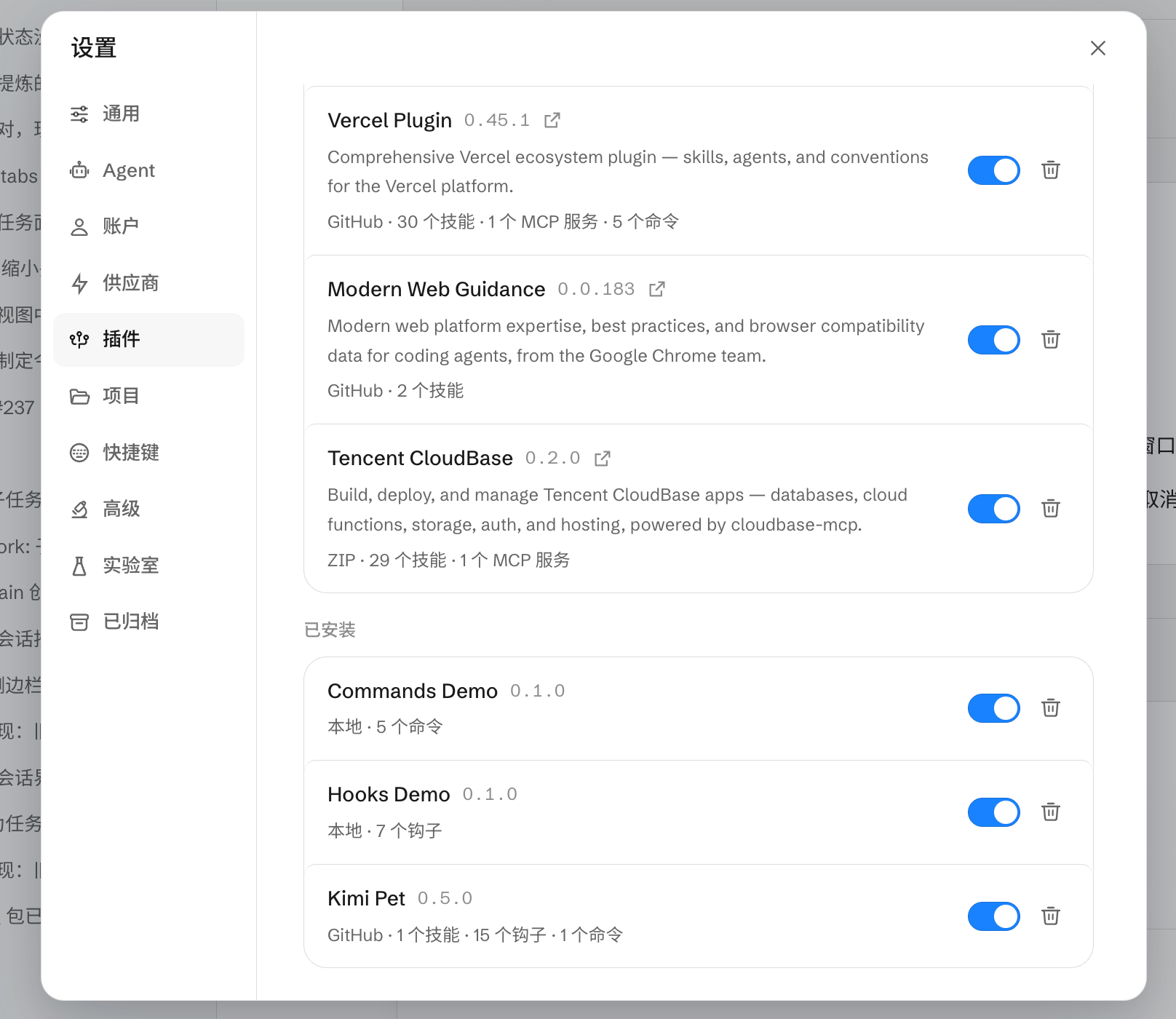
You can use the full CloudBase feature set in chat right after install.
Install from a local ZIP (fallback)
If the plugin is not listed yet, install it from a local ZIP:
- Download the latest
cloudbase-kimi-plugin.zipfrom CloudBase-MCP Releases - In Kimi Work Settings → Plugins, choose Install from local (or drag the ZIP into the window)
- Confirm the install and enable the plugin
Verify the connection
In the chat, type:
Check whether the CloudBase tools are available
Or try a concrete task:
Show me the status of the current CloudBase environment
FAQ
Q: /plugins not found / no Plugins entry in Settings?
A: Upgrade to the latest version — plugin support only shipped in recent builds.
Q: Tencent CloudBase is not in the plugin list? A: In Kimi Code, try the Official or Custom tab; you can also use "Configure MCP manually" above. In Kimi Work, use the local ZIP install.
Q: Nothing happens after toggling the plugin on? A: Restart the app. The first install may need to download dependencies — wait a few seconds and refresh.
Q: MCP connection fails / skill count shows 0? A: Check that Node.js works locally and the network is reachable, then restart the app.
Q: Tool count shows 0? A: See the FAQ.
See the full FAQ for more.