Best Practices
This document provides best practice guidelines for CloudBase authentication and permission control, helping developers quickly understand and integrate the authentication module to build secure and reliable application systems.
Feature Introduction
Core Concepts
The CloudBase authentication system consists of two core components:
- Authentication: Solves the "who is the user" problem, supporting multiple login methods such as phone number, email, WeChat, anonymous, etc.
- Permission Control: Solves the "what resources can the user access" problem, managing resource access permissions through roles and policies in a fine-grained manner.
Complete authentication integration requires understanding: Login Methods → Role System → Member Management → Permission Policies → Security Configuration.
Login Methods
CloudBase supports multiple login methods. You need to enable them first in CloudBase Console/Authentication/Login Methods. You can flexibly choose according to application scenarios:
| Login Method | Applicable Scenarios | Configuration Entry |
|---|---|---|
| Phone Number Login | Applications requiring real-name | Login Method Management |
| Email Login | Enterprise apps, international apps | Login Method Management |
| WeChat Login | WeChat ecosystem applications | Login Method Management |
| Anonymous Login | Features that don't require registration | Registration Configuration |
| Username & Password | Traditional web applications | Login Method Management |
💡 Suggestion: Applications can enable multiple login methods simultaneously, allowing users to choose independently.
Role System
Role Definition
Roles are the carrier of permissions. By assigning users to different roles, fine-grained permission management is achieved. The system provides the following preset roles:
| Role Type | Description | Typical Use Cases |
|---|---|---|
| Administrator | Has all permissions, can manage environments, members, resources | Project leader, technical supervisor |
| All Users | Includes all logged-in and non-logged-in users | Public content access control |
| Organization Members | Users added to the organization structure | Enterprise internal application access |
| External Users | Non-anonymous logged-in users except organization members | C-end application users requiring login, such as e-commerce apps |
| Anonymous Users | Visitors who are not logged in | Public pages, marketing landing pages |
⚠️ Important Note: The administrator role has the highest privileges in the system, including deleting data, modifying configurations, managing members, and other sensitive operations. Please use with caution.
Custom Roles
When preset roles cannot meet business needs, you can create custom roles:
- Visit the CloudBase Console/Authentication/Permission Control page
- Click "Create Role"
- Set role identifier and description, for example:
content_editor: Content Editordata_analyst: Data Analystfinance_admin: Finance Administrator
- Configure access permissions for the role
Role Permission Merging Rules
When a user has multiple roles, permission merging follows these rules:
- Allow permissions are unioned: Users have the sum of all allowed permissions from all roles
- Deny permissions take precedence: A deny rule from any role overrides allow rules from other roles
Example:
User roles: Content Editor + Data Analyst
- Content Editor: Allow access to article table (read, write, update)
- Data Analyst: Allow access to order table (read only)
- Result: User can read and write articles, can view orders
Member Management
Adding Members
There are two ways to add users to roles:
Method 1: Add members in roles
- Visit the CloudBase Console/Authentication/Permission Control page and find the target role
- Click "Configure Members" for the role
- Click "Add Members" to batch select users
- Takes effect immediately after confirmation
Method 2: Manage in organization structure
- Visit the CloudBase Console/Authentication/Organization Structure page
- Create department and position structures
- Add users to corresponding organization nodes
- Batch associate roles to users
Member Permission Changes
There are two ways to modify user permissions:
- Modify role permissions: All users under that role automatically inherit new permissions
- Adjust user roles: Remove users from a role or add them to a new role
💡 Tip: Permission changes may take some time to take effect. It is recommended that users log out and log in again.
Permission Control
Permission Configuration Model
CloudBase's permission control is based on the following model:
Permission Configuration = Resource Scope + Data Scope + Operation Type
- Resource Scope: Which resources can the role access (data tables, cloud functions, cloud storage, etc.)
- Data Scope: Which data can be accessed (all data, only data created by oneself, data meeting specific conditions)
- Operation Type: What operations can be performed (view, create, update, delete)
Data Row Permissions
Control which data rows (records) users can access through row-level permissions. Common configuration methods:
- All data: Users can access all data
- Only own data: Users can only access data they created
- Data meeting specific conditions: Users can only access data meeting specific conditions (such as belonging to a department, specific status, etc.)
Example: Sales personnel can only view customer data they are responsible for
Data Column Permissions
Control which fields (columns) users can access through field-level permissions. You can configure:
- Readable fields: List of fields users can view
- Hidden fields: Sensitive fields that are invisible to users
Example: Hide cost and profit fields from sales personnel
💡 Tip: Row-level permissions and field-level permissions can be used simultaneously to achieve more fine-grained data access control.
Operation Permissions
Configure operation permissions for roles on resources:
- View (Read): Read data
- Create (Create): Add new data
- Update (Update): Edit data
- Delete (Delete): Delete data
Different resource types may support different operation permissions. Please refer to the corresponding resource documentation:
Typical Scenario Practice Examples
Scenario 1: Personal Blog Website
Requirements Description
A personal blog needs to support three scenarios: visitor browsing, user commenting, and blogger management.
Role Planning
| Role | Permission Scope | Target Users |
|---|---|---|
| Anonymous User | Browse articles, view comments | All visitors |
| Registered User | Browse articles, post comments, like | Registered readers |
| Administrator | Publish articles, manage comments, site settings | Blog owner |
Data Permission Configuration
Article table (blog_articles) permission settings:
- Anonymous users: Can only read published articles
- Registered users: Can read published articles and their own drafts
- Administrator: Has all permissions
Comment table (comments) permission settings:
- Anonymous users: Can only view comments
- Registered users: Can view all comments, can update/delete their own comments
- Administrator: Has all permissions
Implementation Steps
- Enable anonymous login: Enable "Allow anonymous login" in Login Method Management
- Configure database permissions: Configure access permissions for corresponding roles in the database collection's permission settings. Please refer to: Document Database Permissions
- Frontend calls anonymous login by default:
import cloudbase from '@cloudbase/js-sdk';

const app = cloudbase.init({
  env: 'your-env-id'
});

const auth = app.auth();

// Execute anonymous login by default
auth.signInAnonymously();
Scenario 2: Enterprise Internal Management System
Requirements Description
Enterprise management systems need to distinguish access permissions for different departments and positions to achieve data isolation.
Role Planning
Custom role creation:
- Create custom roles on the Permission Control page
- Set role identifiers according to job responsibilities, for example:
content_editor: Content Editordata_analyst: Data Analystfinance_admin: Finance Administrator
Data Permission Configuration
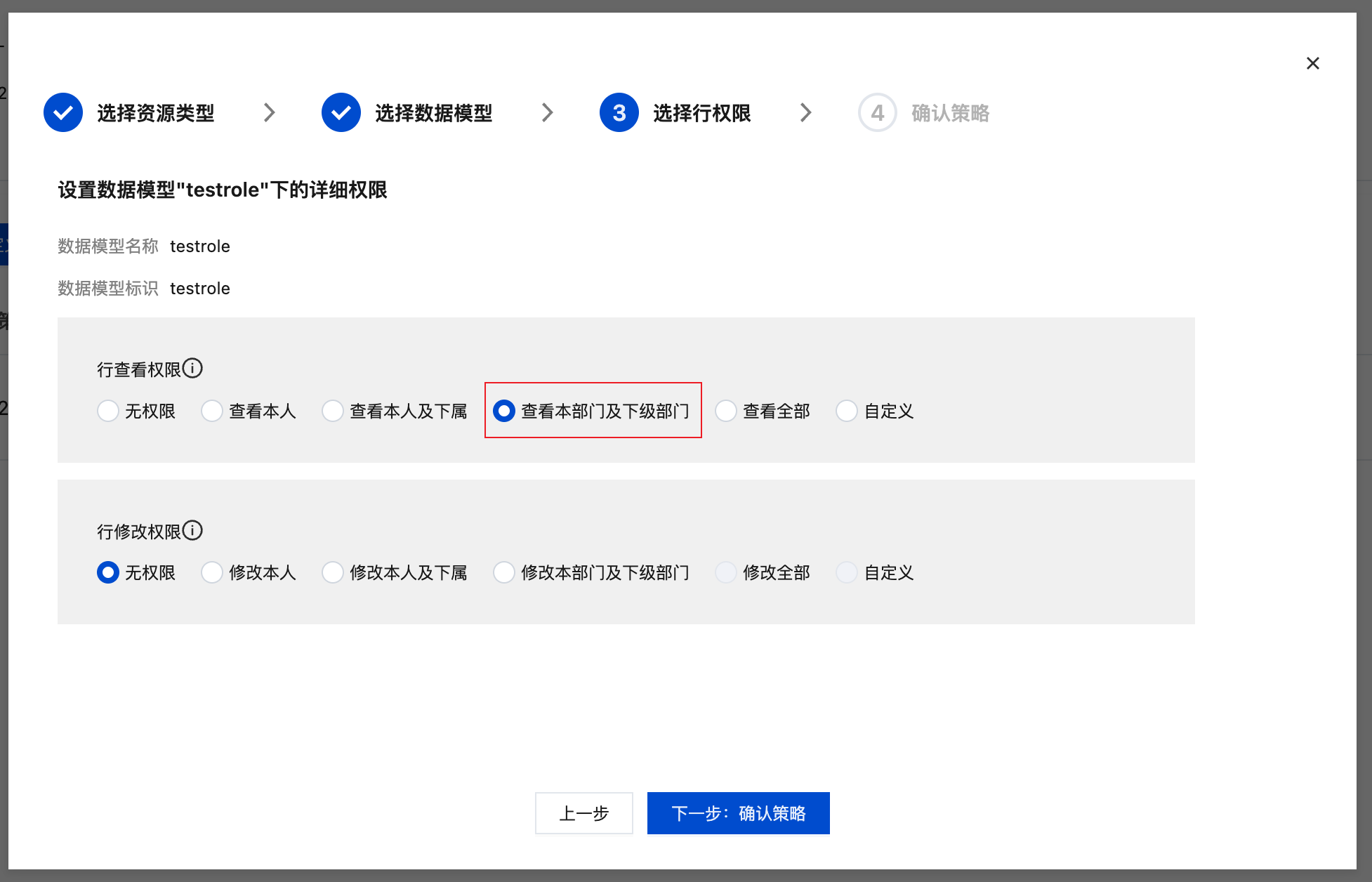
Row-level permission configuration:
Implement "users can only access data from their own department":
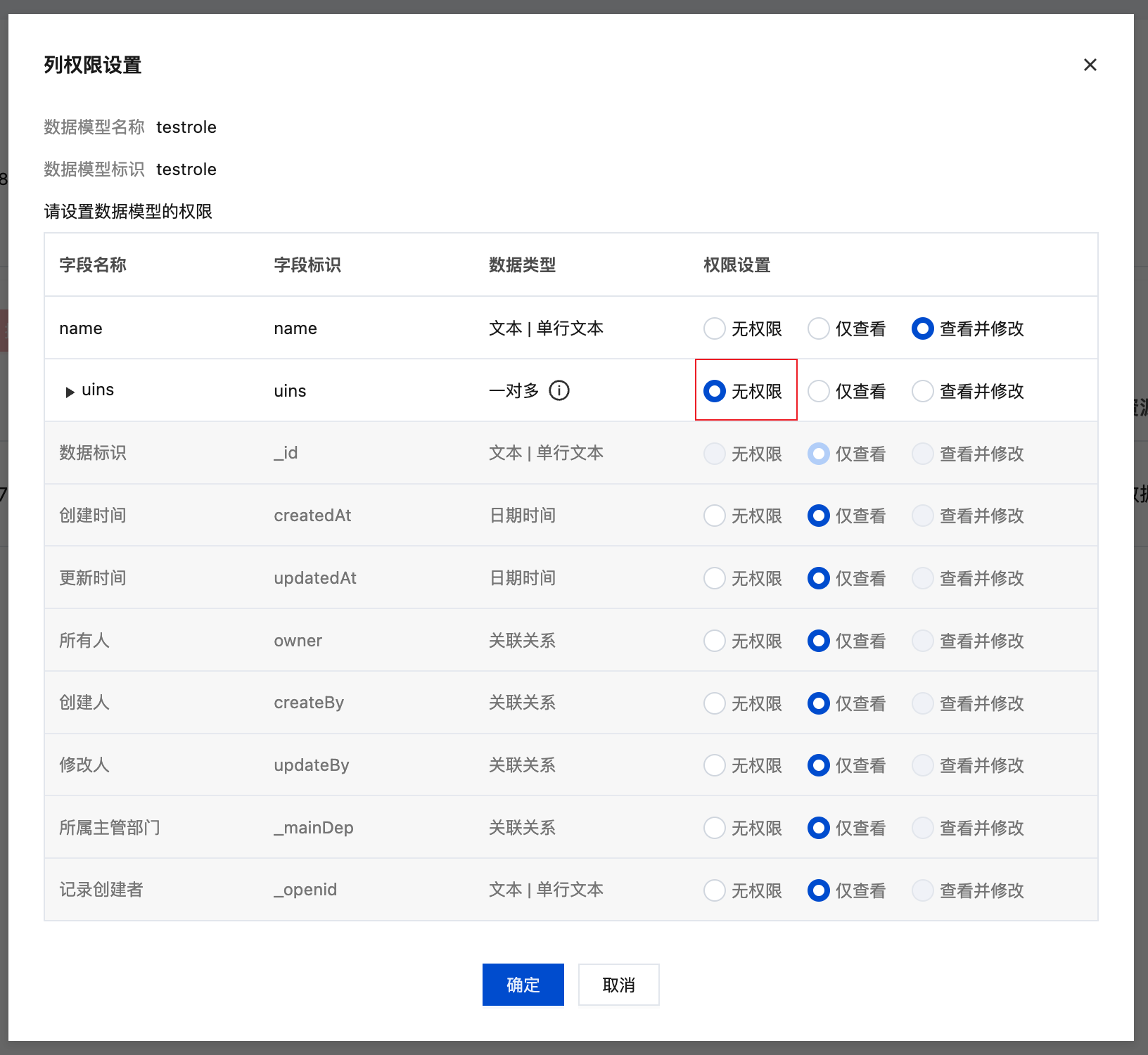
Field-level permission configuration:
Hide sensitive fields (such as cost, profit):
Scenario 3: Collaborative Editing Platform
Requirements Description
A multi-user collaborative document editing platform that allows users to edit documents created by others, but requires strict permission control.
Role Planning
| Role | Permission Scope | Target Users |
|---|---|---|
| Regular User | View all documents, edit own documents | Registered users |
| Collaborator | View all documents, edit authorized documents | Invited users |
| Administrator | Full permissions for all documents (view, edit, delete) | Team managers |
Implementation Solutions
⚠️ Security Warning: Allowing modification of others' data is a high-risk operation and must be implemented with careful permission control.
Solution 1: Modify data through cloud functions (Recommended)
Cloud functions execute on the server side and can bypass client-side permission restrictions, but strict permission verification must be implemented inside the function:
// Cloud Function: editDocument
const cloudbase = require('@cloudbase/node-sdk');
const app = cloudbase.init();
const db = app.database();

exports.main = async (event, context) => {
  const { documentId, newContent } = event;
  const { userInfo } = context;

  // 1. Verify user login status
  if (!userInfo || !userInfo.uid) {
    return { code: 401, message: 'Not logged in' };
  }

  // 2. Query document information
  const doc = await db.collection('documents')
    .doc(documentId)
    .get();

  if (!doc.data || doc.data.length === 0) {
    return { code: 404, message: 'Document not found' };
  }

  const document = doc.data[0];

  // 3. Permission verification: Check if user is author or collaborator
  const isOwner = document._openid === userInfo.openid;
  const isCollaborator = document.collaborators &&
    document.collaborators.includes(userInfo.uid);

  if (!isOwner && !isCollaborator) {
    return { code: 403, message: 'No permission to edit this document' };
  }

  // 4. Execute update
  const result = await db.collection('documents')
    .doc(documentId)
    .update({
      content: newContent,
      lastEditBy: userInfo.uid,
      lastEditAt: new Date()
    });

  return { code: 0, message: 'Update successful', data: result };
};
Solution 2: Configure through security rules (Fine-grained control)
For scenarios requiring more complex and fine-grained permission control, you can use CloudBase's security rules feature.
Resources supporting security rules in CloudBase:
| Resource Type | Security Rules Documentation | Applicable Scenarios |
|---|---|---|
| Document Database | Database Security Rules | Document-level, field-level fine-grained permission control |
| Cloud Storage | Cloud Storage Security Rules | File upload, download, delete permission control |
| Cloud Functions | Cloud Function Security Rules | Function invocation permission control (client SDK only) |
Implementing collaborative editing using security rules:
// Document database security rules example
{
  // Read permission: All logged-in users can view documents
  "read": "auth != null",

  // Write permission: Author, collaborators, or administrators can edit
  "write": "doc._openid == auth.openid || doc.collaborators.includes(auth.uid) || auth.role == 'admin'"
}
Security Configuration Recommendations
Cautious Use of Administrator Role
⚠️ Important Note: The administrator role has the highest privileges in the system, including deleting data, modifying configurations, managing members, and other sensitive operations.
Recommended practices:
- Create custom roles with restricted permissions for daily operations
- Only use administrator accounts when necessary
- Regularly review the list of administrator accounts
- Enable two-factor authentication for administrator accounts
Principle of Least Privilege
Follow the "principle of least privilege", granting users only the minimum permissions needed to complete their work:
✓ Recommended: Sales personnel can only view customer data they are responsible for
✗ Avoid: Sales personnel can view all customer data
Frequently Asked Questions and Solutions
Q1: Why can't users access resources even after permissions have been added?
Troubleshooting steps:
- Check role assignment: Confirm that the user has been assigned to the correct role
- Check policy status: Confirm that the policy has been saved and associated with the correct role
- Check effective time: Permission changes may take some time to take effect. It is recommended that users log out and log in again
- Check gateway policy: May be blocked by gateway-level restrictions. Check the gateway permission policy associated with the user
- View error messages: View the specific denial reason and solve it accordingly
Q2: How are permissions from multiple roles merged?
When a user has multiple roles, permission merging follows these rules:
- Allow permissions are unioned: Users have the sum of all allowed permissions from all roles
- Deny permissions take precedence: A deny rule from any role overrides allow rules from other roles
Example:
User roles: Content Editor + Data Analyst
- Content Editor: Allow access to article table (read, write, update)
- Data Analyst: Allow access to order table (read only)
- Result: User can read and write articles, can view orders