Mini Program WeChat Pay Integration Process
Scenario Introduction
This document primarily introduces how to use the WeChat Pay template to integrate the payment process for Mini Program applications built on the cloud development platform.
Implementation Process
Installing the WeChat Pay template will automatically generate cloud functions, workflows, and WeChat Pay APIs. The order placement, payment, and callback processes are implemented as follows:
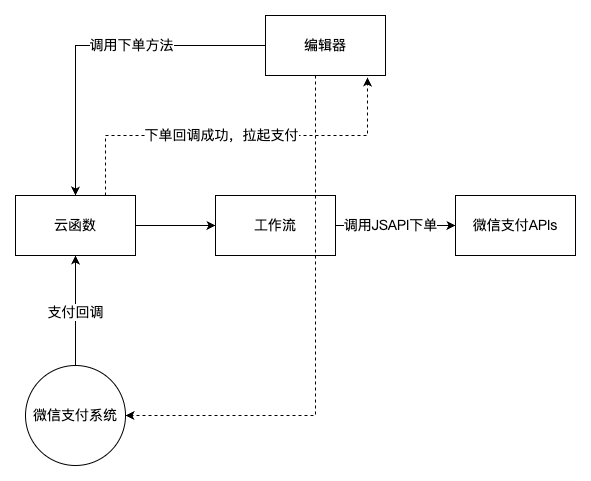
1 WeChat Pay Template Installation
-
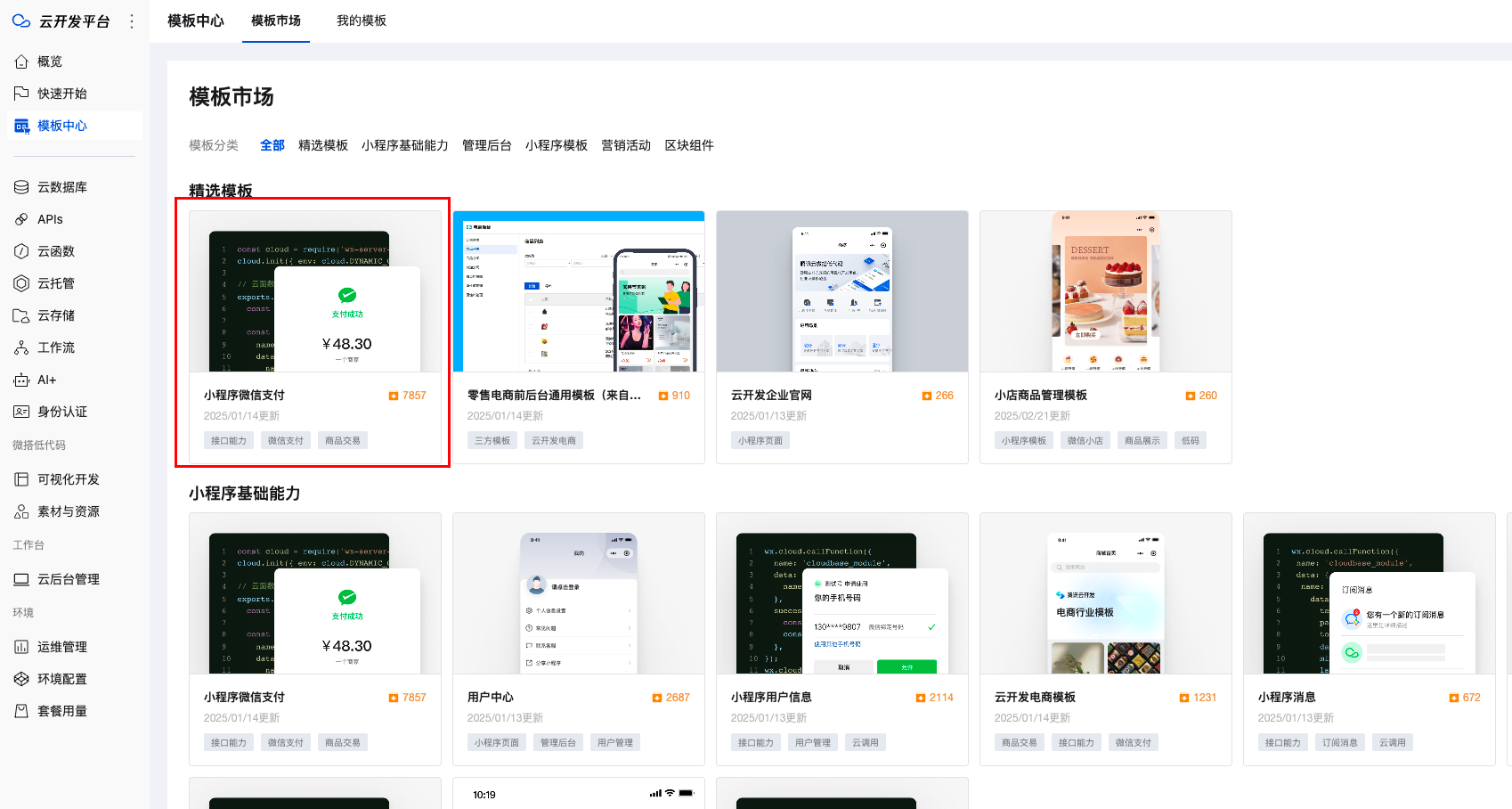
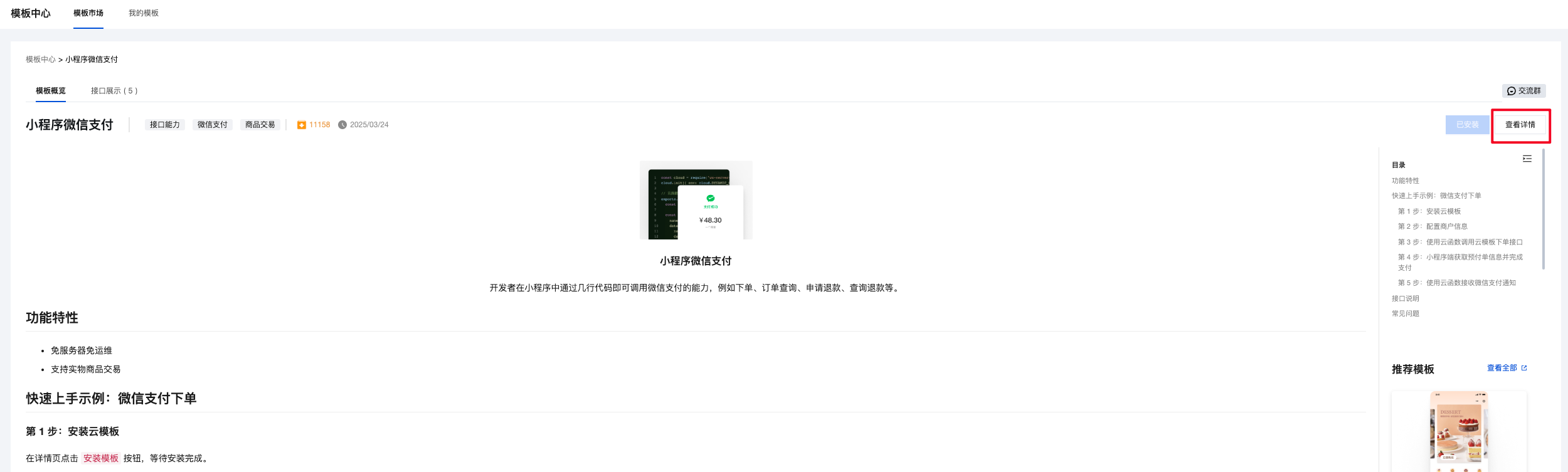
Find the Mini Program WeChat Pay template in the template center of the CloudBase platform.
-
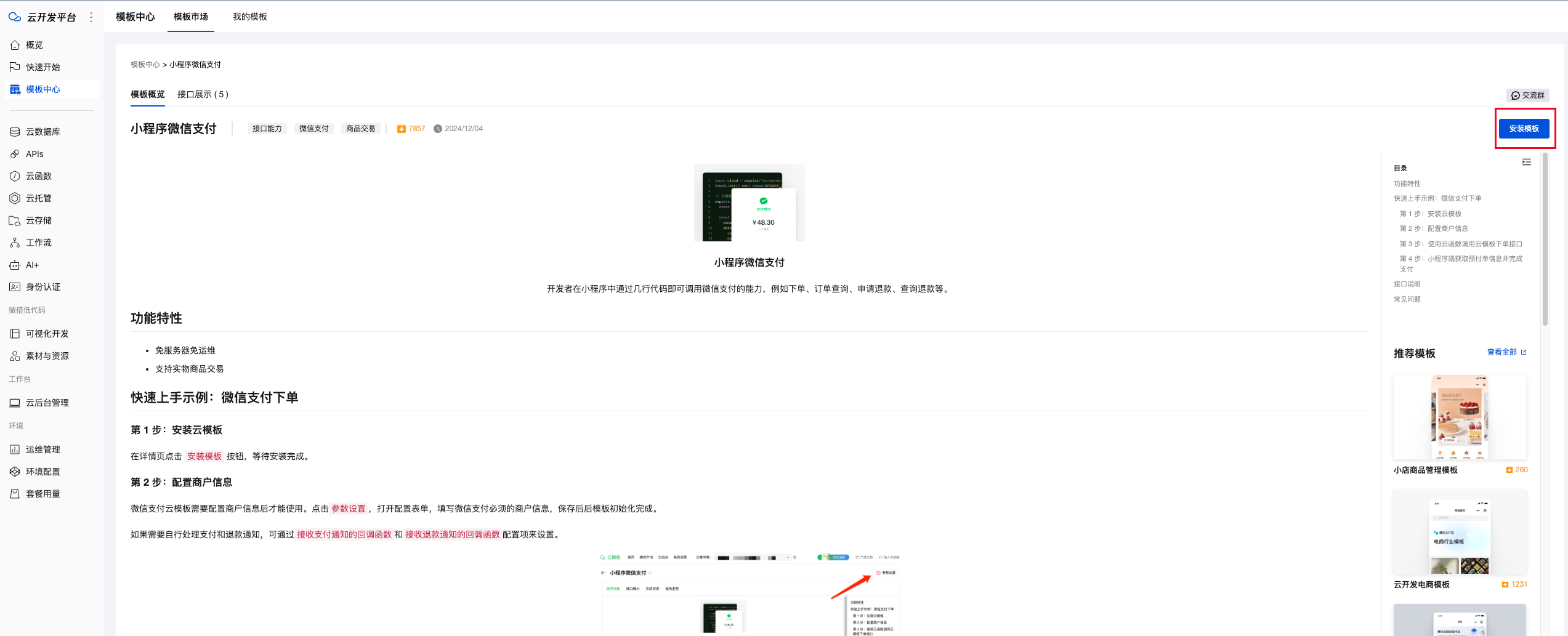
Install the template
-
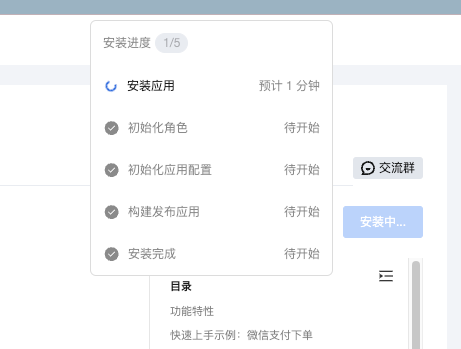
Template Installation in Progress
-
Template Installation Completed

-
View Template Details
-
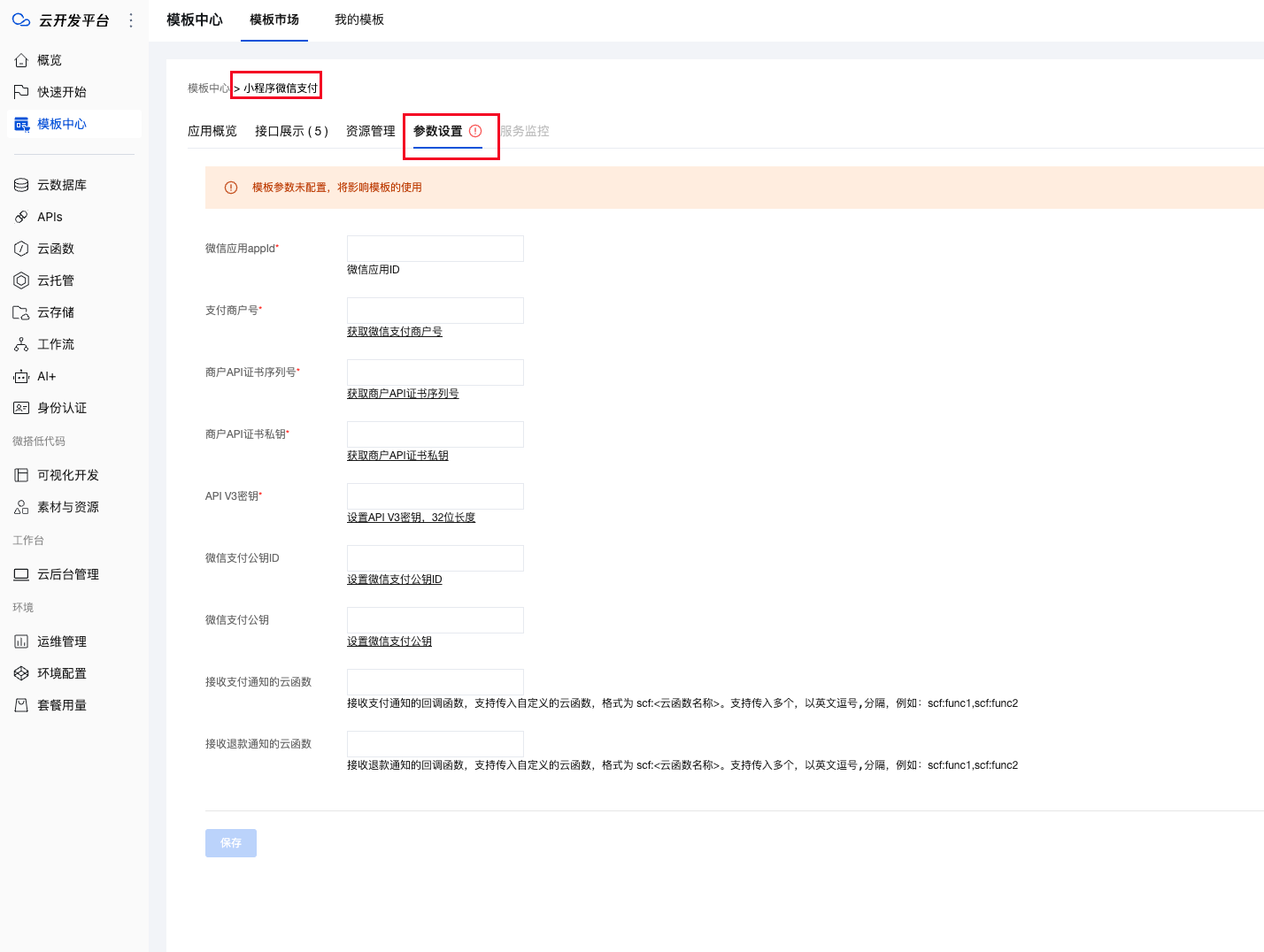
During template parameter configuration, you need to configure payment merchant information. Refer to the relevant parameter descriptions in Payment Merchant Configuration
2 Implement Order Placement and Payment Initiation in the Editor
Payment scenarios require previewing the actual effects in a real device environment or WeChat Developer Tools, as the payment function cannot be invoked in the editor.
Prerequisites
Before formally invoking the payment process, you need to understand:
-
In the editor, Basic Concepts of Events and How to Call JavaScript Event Methods
-
How to Call Cloud Functions in the Editor, using the javascript invocation method as a sample
-
WeChat Pay - Introduction to Mini Program JSAPI Order Placement Parameters
Invocation Process
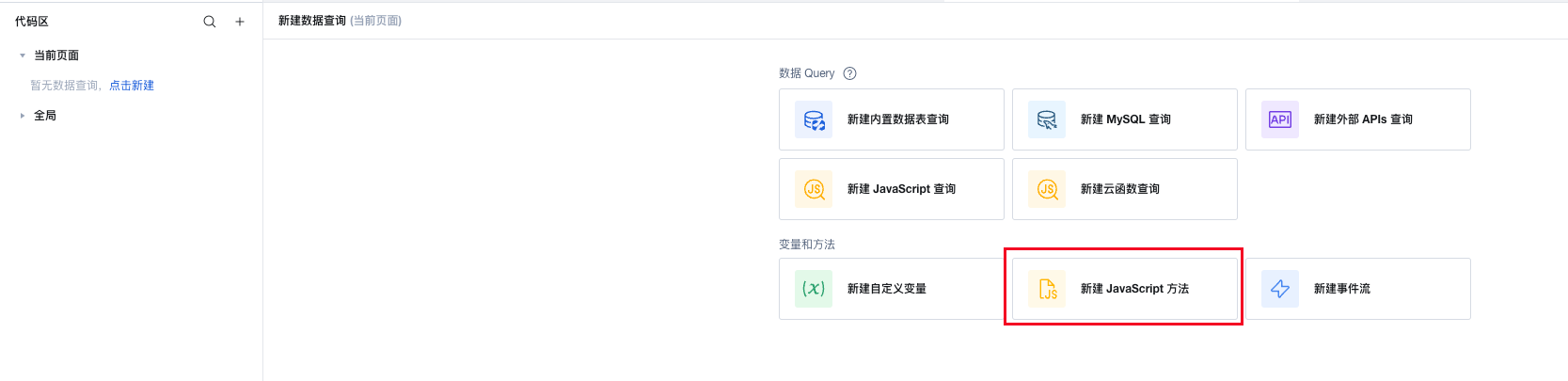
2.1. In the editor, create a new js method to trigger the WeChat Pay order placement function in cloud functions and invoke payment
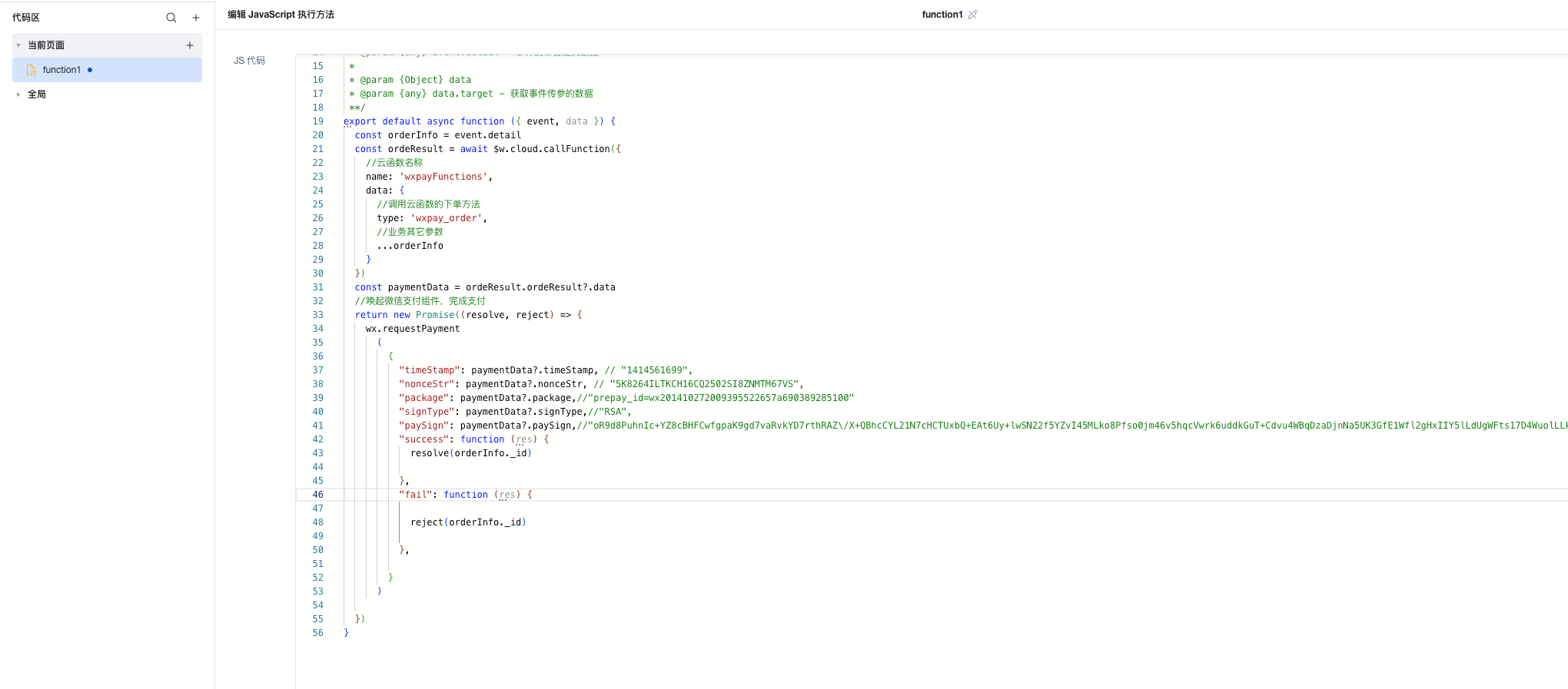
2.2. The js method code is as follows:
In the code, const orderInfo = event.detail is the input parameter when calling the js method in the editor. Please pass it according to the actual business scenario and the Mini Program JSAPI Order Placement Parameters.
export default async function ({ event, data }) {
  const orderInfo = event.detail;
  const ordeResult = await $w.cloud.callFunction({
    // Cloud function name
    name: "wxpayFunctions",
    data: {
      // Invoke the order placement method of the cloud function
      type: "wxpay_order",

      // For the Mini Program Fully Managed Authorization mode, use the following method in the editor to pass the user's openid. Requires pre-enabling openid login or mobile number authorization login methods.
      // openid:$w.auth.currentUser.openId,

      // Other business parameters
      ...orderInfo,
    },
  });
  const paymentData = ordeResult.result?.data;
  // Invoke the WeChat Pay component to complete the payment
  return new Promise((resolve, reject) => {
    wx.requestPayment({
      timeStamp: paymentData?.timeStamp, // "1414561699",
      nonceStr: paymentData?.nonceStr, // "5K8264ILTKCH16CQ2502SI8ZNMTM67VS",
      package: paymentData?.packageVal, //"prepay_id=wx201410272009395522657a690389285100"
      signType: paymentData?.signType, //"RSA",
      paySign: paymentData?.paySign, //"oR9d8PuhnIc+YZ8cBHFCwfgpaK9gd7vaRvkYD7rthRAZ\/X+QBhcCYL21N7cHCTUxbQ+EAt6Uy+lwSN22f5YZvI45MLko8Pfso0jm46v5hqcVwrk6uddkGuT+Cdvu4WBqDzaDjnNa5UK3GfE1Wfl2gHxIIY5lLdUgWFts17D4WuolLLkiFZV+JSHMvH7eaLdT9N5GBovBwu5yYKUR7skR8Fu+LozcSqQixnlEZUfyE55feLOQTUYzLmR9pNtPbPsu6WVhbNHMS3Ss2+AehHvz+n64GDmXxbX++IOBvm2olHu3PsOUGRwhudhVf7UcGcunXt8cqNjKNqZLhLw4jq\/xDg==",
      success: function (res) {
        resolve(orderInfo._id);
      },
      fail: function (res) {
        reject(orderInfo._id);
      },
    });
  });
}
2.3. If the mini program and cloud development platform use fully managed authorization mode, the method for receiving openid in the cloud function needs to be modified as follows:
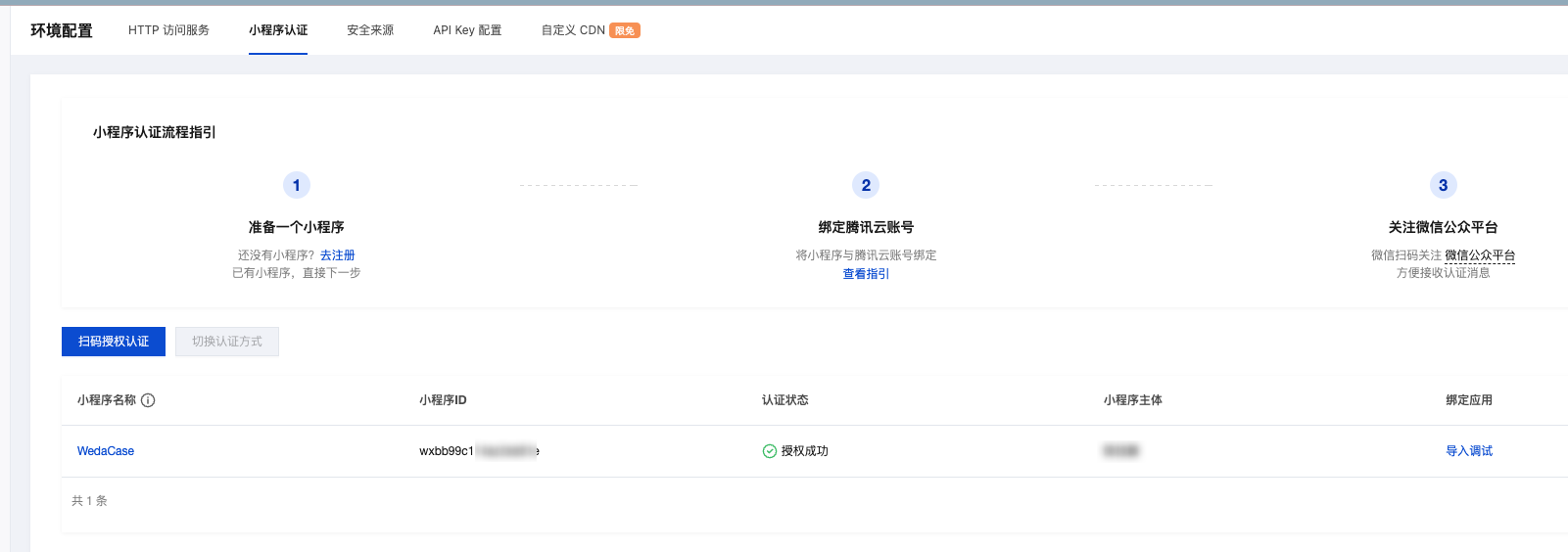
If the Mini Program and CloudBase platform use QR code authorization mode, this step can be skipped
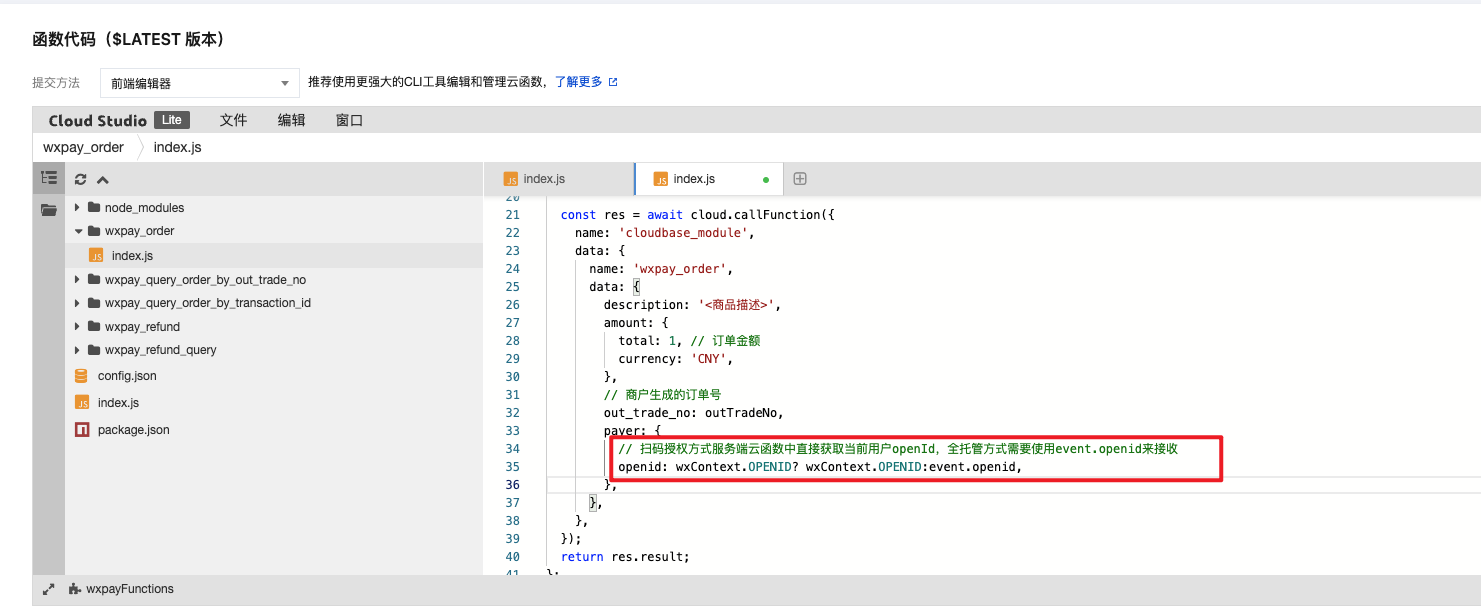
In the cloud function, you need to use event.openid to receive the user's openid passed from the frontend js method.
 payer: {
       // In QR code authorization mode, the cloud function on the server side directly obtains the current user's openId. In fully managed mode, you need to use event.openid to receive it.
       openid: wxContext.OPENID? wxContext.OPENID:event.openid,
     },
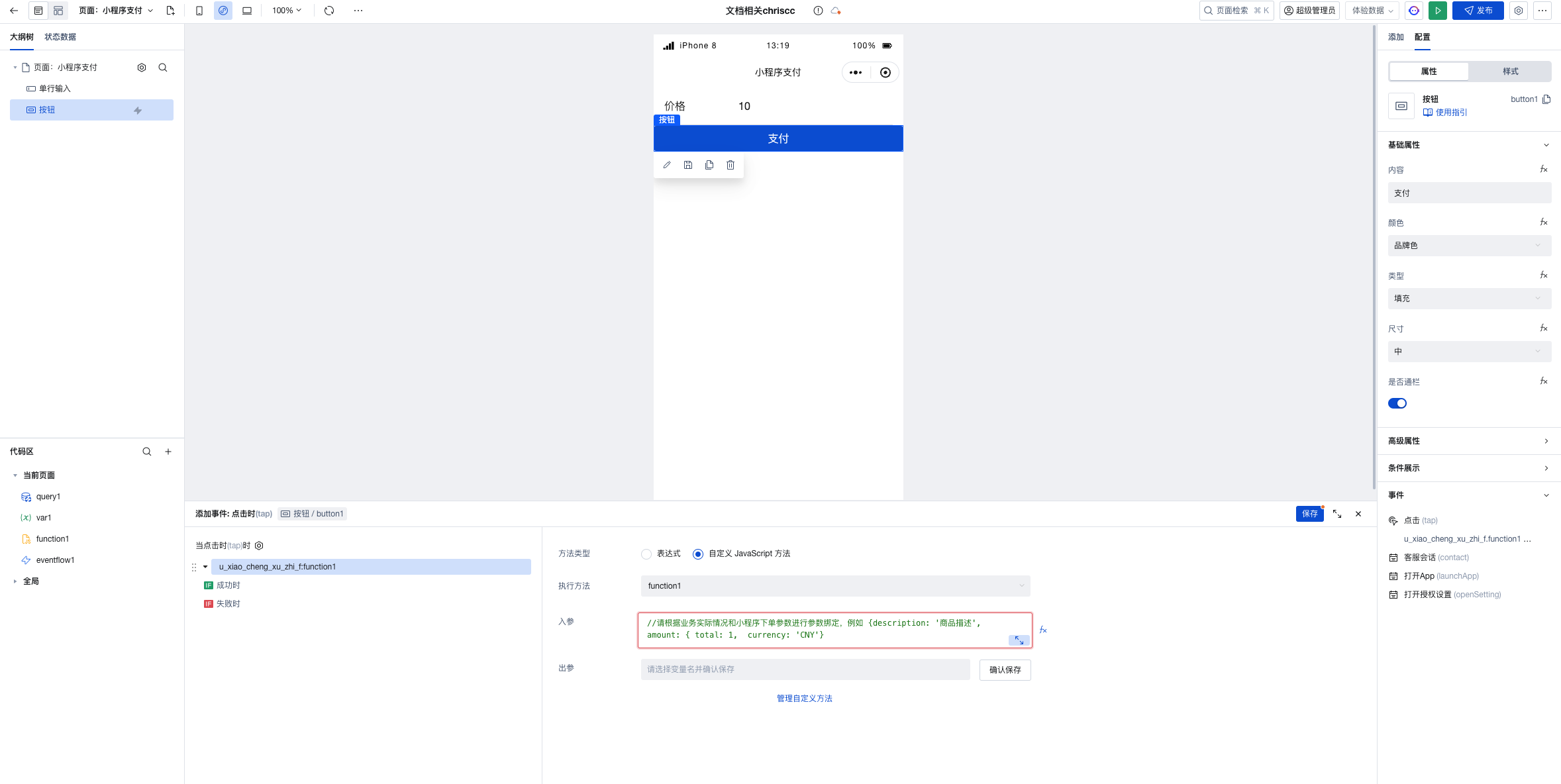
2.4. The event triggers the above-mentioned js method, using the click event as an example.
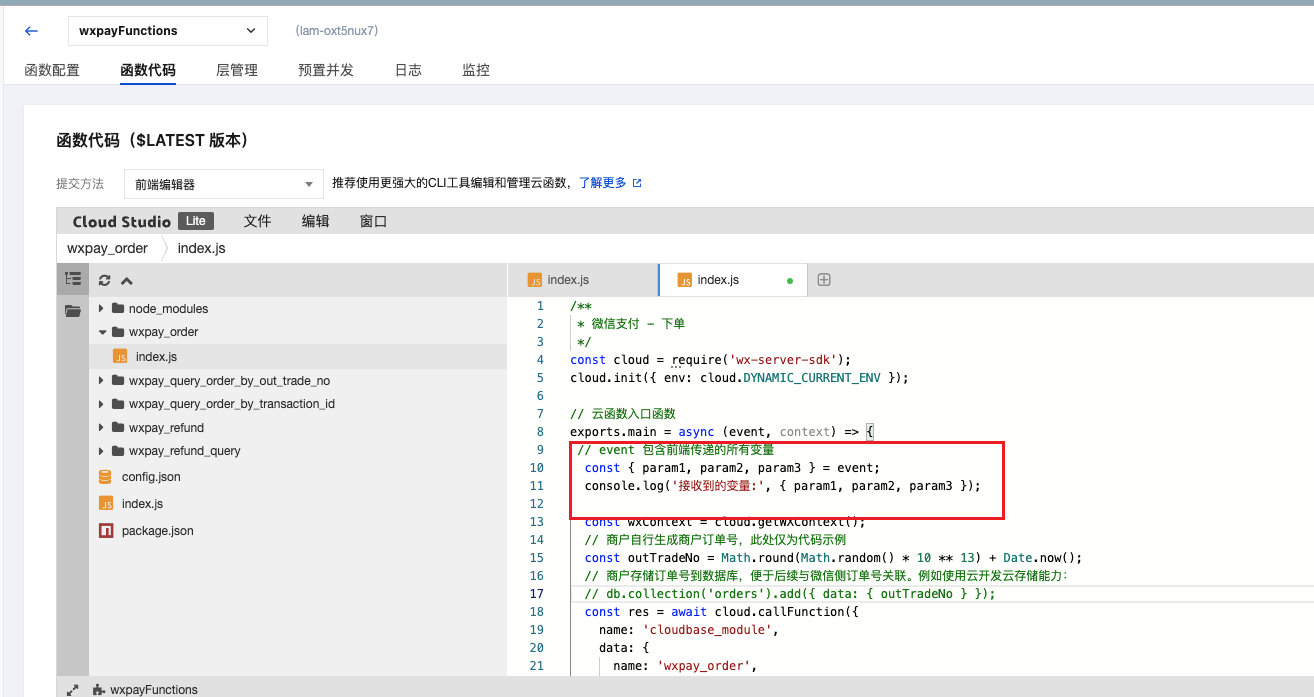
2.5. In the payment cloud function, variables passed from the frontend can be received through the event parameter and processed within the cloud function.
3 Invoke in Native Mini Program Code
If your business needs to call the order placement interface of the cloud template directly from native Mini Program code (for example, a custom-developed page or an existing native Mini Program project), you can follow this section to directly invoke the built-in cloud functions of the template through WeChat Developer Tools, without writing any logic in the editor.
Use this approach when your Mini Program is natively developed or hybrid-developed, and you want to reuse the existing cloud function (wxpayFunctions) from the CloudBase platform's WeChat Pay template.
Prerequisites
The template has built-in cloud function code that can be downloaded locally from WeChat Developer Tools and modified for use. You can also create a cloud function manually. Click Online Code Example to view the sample cloud function code.
3.1 Download the Template Cloud Function Code to Local
Open WeChat Developer Tools, right-click the cloudfunctions directory and select Sync Cloud Function List to sync the wxpayFunctions cloud function from the template to local. Then right-click the wxpayFunctions cloud function directory and select Download to download the template's built-in cloud function code to local, as shown below:


3.2 Edit the Order Placement Cloud Function
After downloading to local, you can adjust the order placement parameters based on your business needs. The wxpay_order method under the cloud function directory is the order placement entry. Default parameters can be referenced from the Mini Program JSAPI Order Placement Parameters.
After modification, right-click the cloud function directory and select Upload and Deploy: Install Dependencies on the Cloud (do not upload node_modules) to redeploy the modified cloud function to the cloud.
3.3 Invoke the Cloud Function and Initiate Payment in the Mini Program Page
In the Mini Program page's JS file, call the wxpay_order method of the wxpayFunctions cloud function via wx.cloud.callFunction to get the payment parameters, then call wx.requestPayment to invoke WeChat Pay:
// pages/pay/pay.js
Page({
  async handlePay() {
    try {
      // 1. Invoke the cloud function for order placement
      const orderResult = await wx.cloud.callFunction({
        name: "wxpayFunctions",
        data: {
          type: "wxpay_order",
          // Business order parameters, pass according to actual needs
          description: "Product description",
          out_trade_no: "Order number",
          amount: {
            total: 1, // Amount in cents
            currency: "CNY",
          },
          // For fully managed authorization mode, openid needs to be passed explicitly
          // openid: 'xxx',
        },
      });

      const paymentData = orderResult.result?.data;
      if (!paymentData) {
        wx.showToast({ title: "Order placement failed", icon: "none" });
        return;
      }

      // 2. Invoke WeChat Pay
      wx.requestPayment({
        timeStamp: paymentData.timeStamp,
        nonceStr: paymentData.nonceStr,
        package: paymentData.packageVal,
        signType: paymentData.signType,
        paySign: paymentData.paySign,
        success: (res) => {
          wx.showToast({ title: "Payment successful" });
          console.log("Payment successful", res);
        },
        fail: (err) => {
          wx.showToast({ title: "Payment failed", icon: "none" });
          console.error("Payment failed", err);
        },
      });
    } catch (err) {
      console.error("Invocation failed", err);
    }
  },
});
- Before use, ensure that the Mini Program has initialized cloud capabilities, i.e., call
wx.cloud.init({ env: 'Cloud Environment ID' })in theonLaunchofapp.js. - If the CloudBase platform and the Mini Program use fully managed authorization mode, the cloud function needs to use
event.openidto receive the user's openid passed from the frontend. If using QR code authorization mode, the cloud function can directly obtain it viacloud.getWXContext().OPENID. See 2.3 Fully Managed Authorization Mode Adaptation above for details.
3.4 Payment Callback Handling
The payment callback handling logic for native invocation is identical to the editor approach. Refer to the 4 Payment Callback Handling section below. No additional configuration is needed.
4 Payment Callback Handling
Using Cloud Functions to Receive WeChat Pay Notifications
WeChat Pay asynchronously sends payment notifications. Here, cloud functions are used to receive these notifications and determine payment success. Developers can update the order payment status based on the WeChat Pay notifications received by the cloud function.
-
Create a cloud function named
wxpayOrderCallbackas the callback function for receiving payment notifications, as shown in the sample code below"use strict";exports.main = async (event, context) => {// event contains all the json parameters listed above; use them as needed// Here, event_type === "TRANSACTION.SUCCESS" is used to determine successful paymentconst { event_type } = event;if (event_type === "TRANSACTION.SUCCESS") {// Process business logic related to successful payment, such as updating order status in the data model}return event;}; -
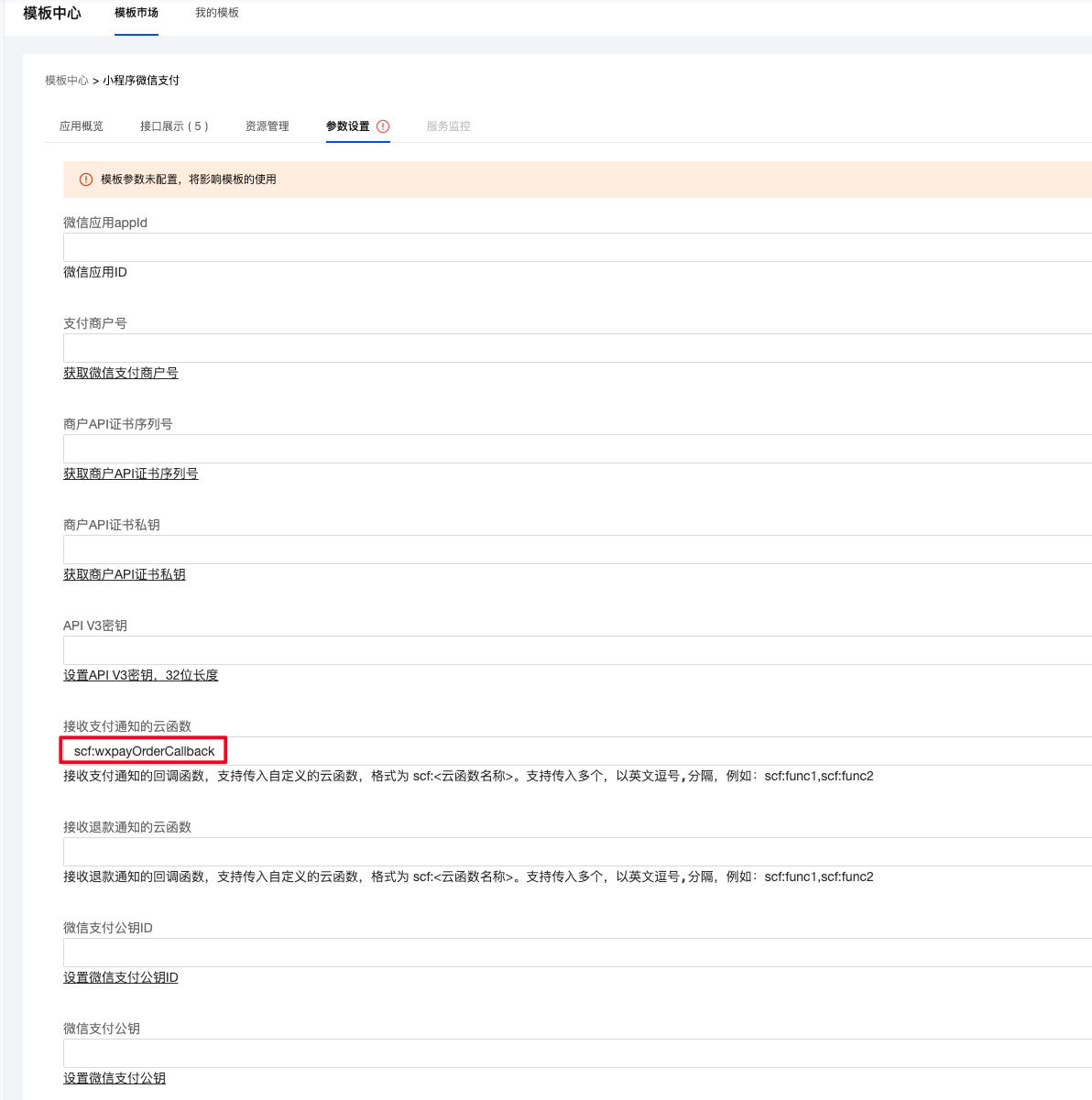
In the parameter settings, configure the "Cloud Function for Receiving Payment Notifications" field with the value: scf:wxpayOrderCallback
-
Parameters sent by WeChat Pay
NoteDifferent payment types return varying parameter structures; refer to the actual parameters received by the callback function.
{"id": "EV-2018022511223320873", // Unique ID of the callback notification"create_time": "2015-05-20T13:29:35+08:00", // Creation time of this callback notification"resource_type": "encrypt-resource", // Resource data type for the notification, fixed to encrypt-resource"event_type": "TRANSACTION.SUCCESS", // Type of WeChat Pay callback notification. The type for successful payment notification is TRANSACTION.SUCCESS."summary": "Payment successful", // Summary note for the callback content by WeChat Pay."resource": {"amount": {"currency": "CNY","payerCurrency": "CNY","payerTotal": 1,"payer_currency": "CNY","payer_total": 1,"total": 1},"appid": "wx480c*****aa44a43","attach": "","bankType": "BOC_DEBIT","bank_type": "BOC_DEBIT","mchid": "1613752320","outTradeNo": "8206022981401","out_trade_no": "8206022981401","payer": {"openid": "ou*********************3zM"},"promotionDetail": null,"promotion_detail": null,"successTime": "2025-03-21T17:27:37+08:00","success_time": "2025-03-21T17:27:37+08:00","tradeState": "SUCCESS","tradeStateDesc": "Payment successful","tradeType": "JSAPI","trade_state": "SUCCESS","trade_state_desc": "Payment successful","trade_type": "JSAPI","transactionId": "4200002********8510115762","transaction_id": "42000026********8510115762"}}
Introduction to Core Modules of WeChat Pay Template
-
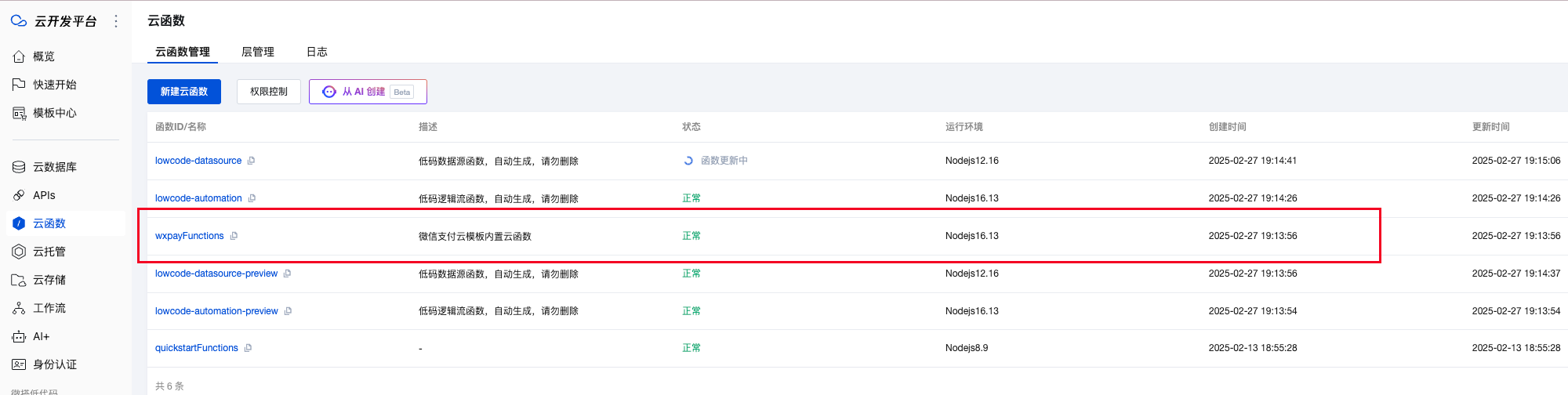
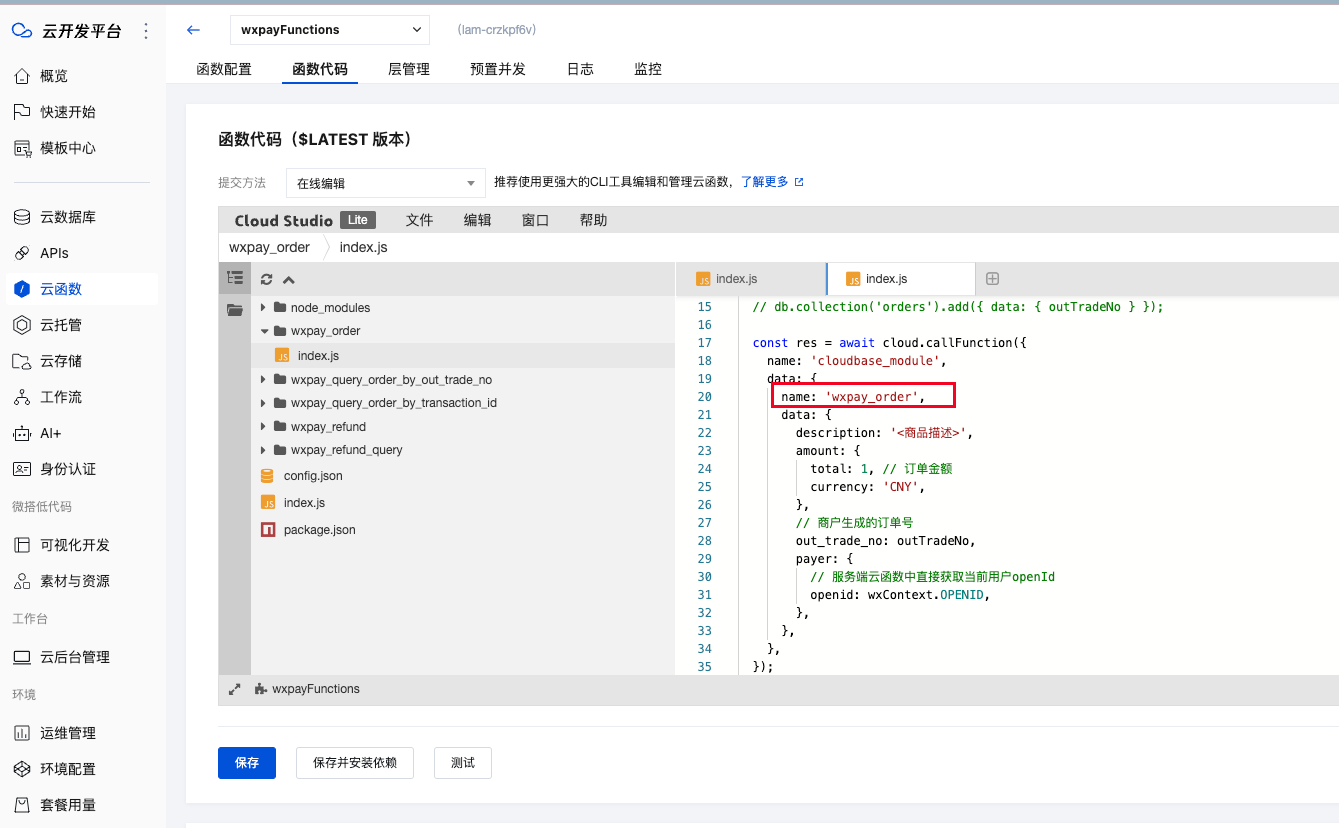
The Cloud Function
wxpayFunctionsincludes the following methods:- wxpay_order: Mini Program order placement
- wxpay_query_order_by_transaction_id: Query order by WeChat Pay transaction ID
- wxpay_query_order_by_out_trade_no: Query order by merchant order number
- wxpay_refund: Apply for refund
- wxpay_refund_query: Query a single refund by merchant refund number
-
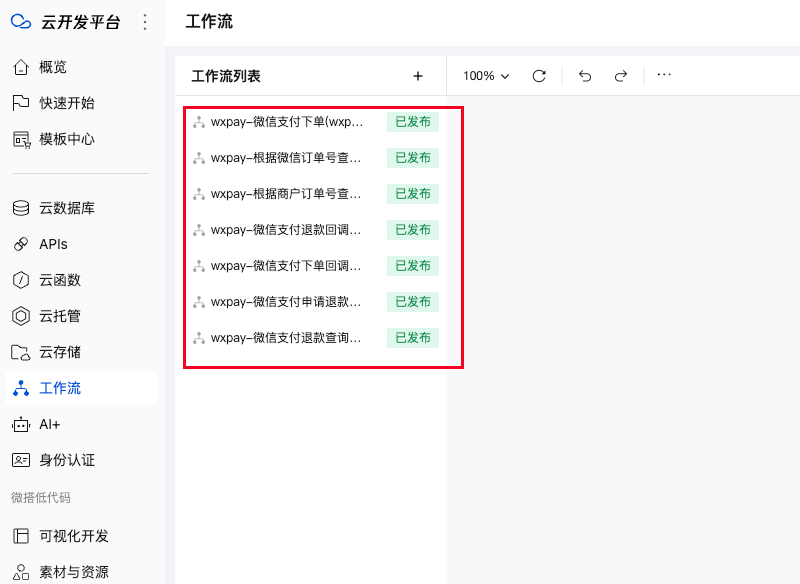
Workflow: Connects cloud functions and APIs methods to achieve seamless payment process integration.
-
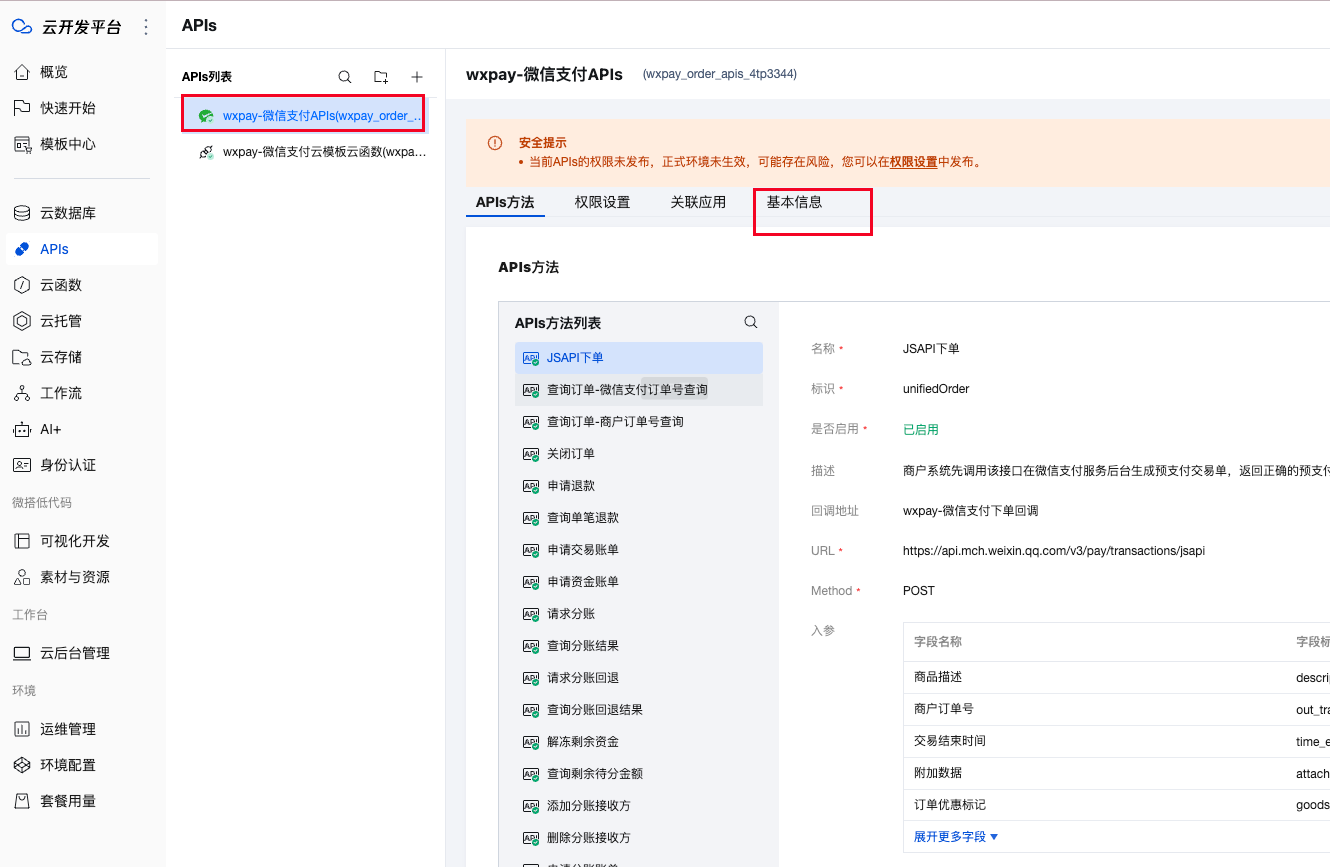
APIs: Encapsulate WeChat Pay-related interfaces, where the JSAPI order placement method serves as a key prerequisite step for payment initiation.
FAQ
1 Why can't the payment be invoked in the editor?
The editor actually provides a web-based rendering effect and cannot simulate a real payment environment.
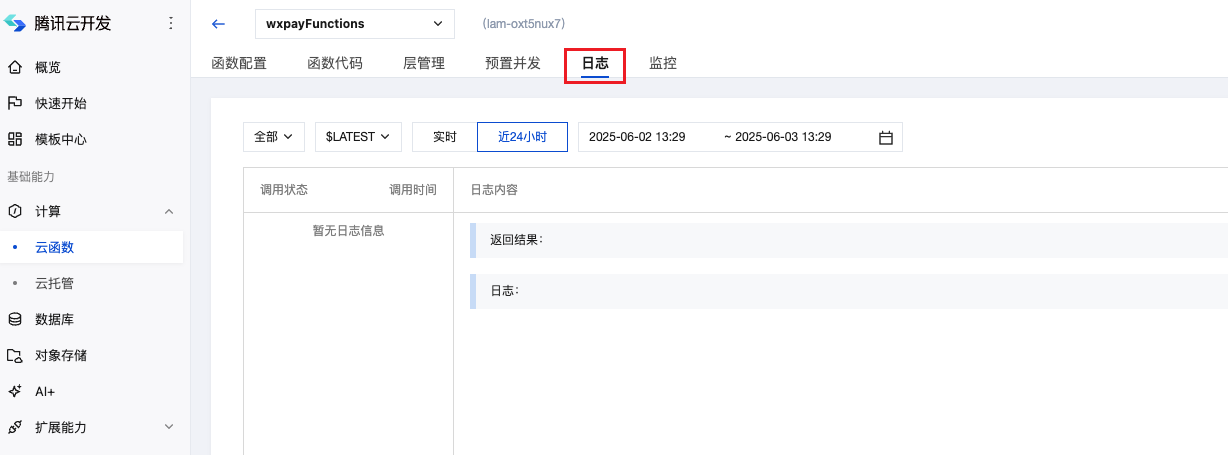
2 How to determine if a cloud function has been executed successfully?
You can view cloud function execution logs on the cloud development platform.
3 No response when clicking the pay button on a real device?
-
Check if the jsapi order placement parameters are correct by referring to the implementation steps described above.
-
To perform breakpoint debugging on cloud functions, add console log statements in the order placement method. During execution, view the logs via cloud function logs or the mini program's vconsole mode.