Deployment Guide
This guide explains how to configure and deploy frontend projects to CloudBase Static Hosting service.
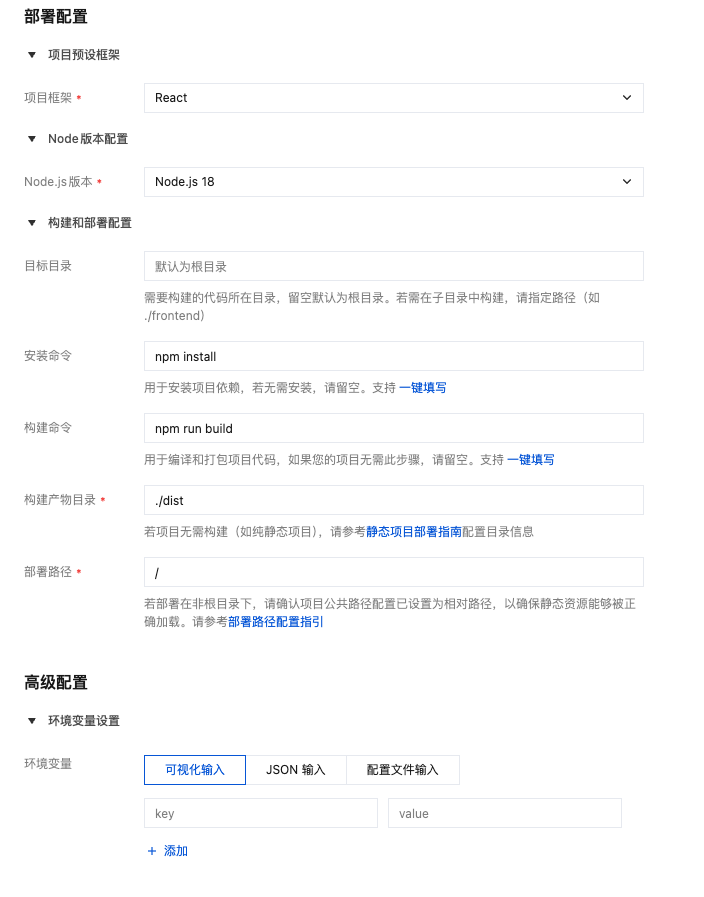
1. Configuration Instructions
1.1 Basic Configuration
| Configuration | Description | Example | Required |
|---|---|---|---|
| Project Name | Custom project identifier | my-project | ✅ |
| Project Framework | Select frontend framework (auto-detects and fills build config) | React, Vue.js, Angular, Next.js, Nuxt.js, VitePress, Astro, Hugo, Hexo, Other | ✅ |
| Node.js Version | Build environment version (16/18/20/22/24) | Node.js 18 | ✅ |
The "Project Framework" dropdown now supports 10 mainstream frontend frameworks: React, Vue.js, Angular, Next.js, Nuxt.js, VitePress, Astro, Hugo, Hexo, and custom configuration (Other). After selecting a framework, the platform automatically recommends and fills the corresponding install command, build command, and target directory, reducing manual configuration effort. Developers can deploy in one click without manually configuring build parameters.
1.2 Build Configuration
| Configuration | Description | Example | Required |
|---|---|---|---|
| Target Directory | Code location directory (default root) | /frontend | - |
| Install Command | Install dependencies | npm install | Optional for static projects |
| Build Command | Compile and build | npm run build | Optional for static projects |
| Build Output Directory | Output directory | ./dist, ./build | ✅ |
| Deploy Path | Access path | /, /app | - |
If your project consists of pure HTML/CSS/JS files, no build required:
- Leave Install Command and Build Command empty
- Set Build Output Directory to the static files location (e.g.,
.,./public) - For details, see: Pure Static Project Deployment
1.3 Environment Variables (Optional)
Configure build-time environment variables:
NODE_ENV=production
VITE_API_URL=https://api.example.com
REACT_APP_ENV=production
2. Deployment Log Display
After submitting configuration, the system executes the build and deployment process. You can view real-time logs in the console:
Log Examples
Successful Deployment Log
Deployment complete 👉 https://lowcode-0gwpl9v4xxxxxxx-1258057692.tcloudbaseapp.com
✔ Total files: 4
✔ Successfully uploaded 4 file(s)
┌────────┬─────────────────────────────────────┐
│ Status │ File │
├────────┼─────────────────────────────────────┤
│ ✔ │ /cosdesign/cosdesign.code-workspace │
├────────┼─────────────────────────────────────┤
│ ✔ │ /cosdesign/index.html │
├────────┼─────────────────────────────────────┤
│ ✔ │ /cosdesign/script.js │
├────────┼─────────────────────────────────────┤
│ ✔ │ /cosdesign/style.css │
└────────┴─────────────────────────────────────┘
✖ Failed to upload 0 file(s)
[2026-01-27 20:03:33] 自定义部署完成
Finished, code: 0, duration: 6.9s
How to Determine if Deployment Succeeded
The following key indicators confirm successful deployment:
✅ ✔ Successfully uploaded X file(s) - Number of successfully uploaded files
✅ Deployment complete 👉 Access URL - Deployment complete with access link displayed
✅ Finished, code: 0 - Process exit code 0 (no errors)
✅ All files in list show ✔ status - All files uploaded successfully
If you see the following, deployment failed or partially failed:
- ❌
✖ Failed to upload X file(s)where X > 0 - Some files failed to upload - ❌
Finished, code: 1or other non-zero value - Build or deployment process error - ❌ Log contains
Error:orFailed:error messages
3. Quick Configuration Examples
Pure Static Project
Project Framework: Other
Install Command: (leave empty)
Build Command: (leave empty)
Build Output Directory: .
Deploy Path: /my-static-site
React (Vite)
Project Framework: React
Install Command: npm install
Build Command: npm run build
Build Output Directory: ./dist
Deploy Path: /my-react-app
Vue (Vue CLI)
Project Framework: Vue
Install Command: npm install
Build Command: npm run build
Build Output Directory: ./dist
Deploy Path: /my-vue-app
Angular
Project Framework: Angular
Install Command: npm install
Build Command: npm run build
Build Output Directory: ./dist/project-name
Deploy Path: /my-angular-app
Next.js (SSG Static Export)
Project Framework: Next.js
Install Command: npm install
Build Command: npm run build
Build Output Directory: ./out
Deploy Path: /my-next-app
Nuxt (SSG Static Generation)
Project Framework: Nuxt.js
Install Command: npm install
Build Command: npm run generate
Build Output Directory: ./.output/public
Deploy Path: /my-nuxt-app
VitePress
Project Framework: VitePress
Install Command: npm install
Build Command: npm run docs:build
Build Output Directory: ./docs/.vitepress/dist
Deploy Path: /my-docs
Astro
Project Framework: Astro
Install Command: npm install
Build Command: npm run build
Build Output Directory: ./dist
Deploy Path: /my-astro-site
Hugo
Project Framework: Hugo
Install Command: (leave empty)
Build Command: hugo --minify
Build Output Directory: ./public
Deploy Path: /my-hugo-site
Hexo
Project Framework: Hexo
Install Command: npm install
Build Command: npx hexo generate
Build Output Directory: ./public
Deploy Path: /my-blog
4. Framework Configuration Reference
React
Create React App
- Build Output Directory:
./build - package.json:
{"scripts": {"build": "react-scripts build"}}
Vite + React
- Build Output Directory:
./dist - vite.config.js:
import { defineConfig } from 'vite'import react from '@vitejs/plugin-react'export default defineConfig({plugins: [react()],base: './', // Use relative path for subdirectory deploymentbuild: {outDir: 'dist'}})
Vue
Vue CLI
- Build Output Directory:
./dist - vue.config.js:
module.exports = {publicPath: './', // Use relative path for subdirectory deploymentoutputDir: 'dist'}
Vite + Vue
- Build Output Directory:
./dist - vite.config.js:
import { defineConfig } from 'vite'import vue from '@vitejs/plugin-vue'export default defineConfig({plugins: [vue()],base: './', // Use relative path for subdirectory deploymentbuild: {outDir: 'dist'}})
Angular
- Build Output Directory:
./dist/project-name - angular.json:
{"projects": {"your-project": {"architect": {"build": {"options": {"outputPath": "dist/your-project","baseHref": "./" // Use relative path for subdirectory deployment}}}}}}
Next.js
Static Website Hosting supports deployment of Next.js applications in SSG (Static Site Generation) mode. It is recommended to use the official Nextjs Web Application Template to quickly create a project with CloudBase SDK pre-integrated.
- Build Output Directory:
./out - next.config.js:
/** @type {import('next').NextConfig} */const nextConfig = {output: 'export', // Enable static exportimages: {unoptimized: true // Static export requires disabling image optimization},basePath: '', // Fill in for subdirectory deployment, e.g., '/my-app'trailingSlash: true}module.exports = nextConfig
- package.json:
{"scripts": {"build": "next build"}}
Nuxt
Static Website Hosting supports deployment of Nuxt applications in SSG (Static Site Generation) mode. It is recommended to use the official Nuxt Web Application Template to quickly create a project with CloudBase SDK pre-integrated.
- Build Output Directory:
./.output/public - nuxt.config.ts:
export default defineNuxtConfig({ssr: false, // Or use nitro.preset: 'static'app: {baseURL: '/', // Fill in for subdirectory deployment, e.g., '/my-app/'buildAssetsDir: '/_nuxt/'}})
- package.json:
{"scripts": {"generate": "nuxt generate"}}
VitePress
- Build Output Directory:
./docs/.vitepress/dist - docs/.vitepress/config.js:
export default {base: '/', // Use '/my-docs/' for subdirectory deploymentoutDir: '.vitepress/dist'}
Astro
- Build Output Directory:
./dist - astro.config.mjs:
import { defineConfig } from 'astro/config'export default defineConfig({base: '/', // Fill in for subdirectory deployment, e.g., '/my-astro-site'output: 'static'})
Hugo
- Build Output Directory:
./public - hugo.toml (or
config.toml):baseURL = "https://example.com/"# For subdirectory deployment: baseURL = "https://example.com/my-site/"publishDir = "public" - Build Command:
hugo --minify
Hexo
- Build Output Directory:
./public - _config.yml:
url: https://example.comroot: / # Fill in '/my-blog/' for subdirectory deploymentpublic_dir: public
- Build Command:
npx hexo generate
5. Deploy Path Configuration
Root Path Deployment (/)
Use Cases:
- Single application occupying entire static hosting environment
- Official website, product homepage requiring direct domain access
- Access URL:
https://example.com/
Root path deployment overwrites existing files in static hosting root directory:
- Same-name files will be overwritten and cannot be automatically recovered
- Multiple projects deployed to root path will overwrite each other
- Recommendation: Use subdirectories for multi-project scenarios (e.g.,
/app1,/app2)
Subdirectory Deployment (/app)
Use Cases:
- Deploy multiple projects in the same environment
- Isolate different application files
- Access URL:
https://example.com/app/
Configuration Requirements:
Set the public path to relative path ./ in project configuration to avoid static resource loading failures.
| Framework | Config File | Config Option |
|---|---|---|
| Vite | vite.config.js | base: './' |
| Vue CLI | vue.config.js | publicPath: './' |
| Create React App | package.json | "homepage": "./" |
| Angular | angular.json | "baseHref": "./" |
6. Special Scenario Configuration
Monorepo Projects
Frontend code in subdirectory:
Target Directory: /packages/web
Install Command: npm install
Build Command: npm run build
Build Output Directory: ./dist
Multi-Application Projects
Project contains multiple applications:
Target Directory: /apps/admin
Install Command: npm install
Build Command: npm run build
Build Output Directory: ./dist
Common Questions
Q: Static resources 404 after deployment?
A: Check if correct base/publicPath is configured. Subdirectory deployment requires relative path ./
Q: How to deploy multiple projects?
A: Configure different deploy paths for each project, such as /app1, /app2, to avoid file conflicts
Q: How to choose Node.js version?
A: Recommend using the same version as your local development environment to avoid build differences