Authentication
HTTP authentication is a security mechanism used to verify the identity of users accessing resources through the HTTP Gateway. By enabling this feature, you can:
- Protect your services from unauthorized user access
- Track and record user access behavior
- Provide personalized service content based on user identity
Enable HTTP Authentication
- Log in to the CloudBase console and go to HTTP Gateway Management
- In the Route Management list, find the path that requires authentication
- Click the "Authentication" toggle for the corresponding path to enable authentication
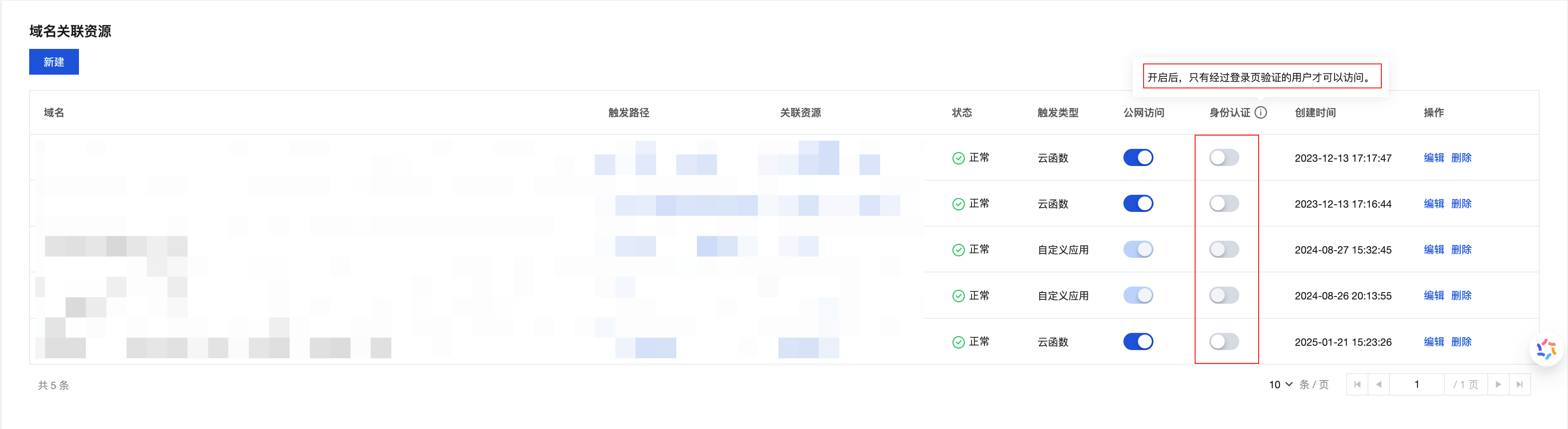
Access Behavior After Enabling Authentication
After enabling authentication, different types of requests will be handled differently:
| Request Type | Behavior Description | Applicable Scenarios |
|---|---|---|
| Direct Browser Access | System automatically redirects to login page, and after successful login, automatically redirects back to original page | User opens link in browser |
| Server-side API Call | Requests without valid authentication information return MISSING_CREDENTIALS error code | Backend services, script API calls |
| Web Application | Need to obtain accessToken via Web SDK and carry it in request headers | Frontend web application API calls |
Important Note
Browser access and server-side calls are two different scenarios:
- Browser access: User enters URL in address bar or clicks link, system automatically handles login redirect
- Server-side call: Code initiates requests via HTTP client (like
axios,fetch), must carry validAuthorizationparameter in request headers
Use Authentication Information in HTTP Requests
Prerequisites
Before using the following examples, please ensure:
- Authentication feature has been enabled in CloudBase console
- User login methods have been configured (such as username/password login, mobile login, etc.)
- User has completed login and obtained valid
accessToken
Token Types
CloudBase supports multiple token types for authentication:
| Token Type | Applicable Environment | User Permissions | Validity Period | Acquisition Method |
|---|---|---|---|---|
| Access Token | Client/Server | Logged-in user permissions | Default 2 hours | Obtained after logging in via Web SDK |
| API Key | Server | Administrator permissions | Long-term valid | CloudBase Console - API Key Management |
| Publishable Key | Client/Server | Anonymous user permissions | Long-term valid | CloudBase Console - API Key Management |
Important Note
- API Key has administrator privileges, strictly prohibited to use on the client side, only for server-side environment
- Publishable Key can be safely exposed in browsers, used for requesting publicly accessible resources
- All tokens are critical credentials for authentication, please keep them secure
- Web Application
- Node.js / axios
- cURL
const cloudbase = require("@cloudbase/js-sdk");

// Initialize SDK
const app = cloudbase.init({
    env: "Your Environment ID" // Replace with your CloudBase environment ID
});
const auth = app.auth();

// User login (example using username/password login)
await auth.signIn({
    username: "your username",
    password: "your password"
});

// Get token
const { accessToken } = await auth.getAccessToken();

// Use fetch to make authenticated HTTP request
fetch('https://Your Environment ID.<your-env-region>.app.tcloudbase.com/api/function', {
    method: 'POST',
    headers: {
        'Authorization': `Bearer ${accessToken}`,
        'Content-Type': 'application/json'
    },
    body: JSON.stringify({
        name: "CloudBase",
        action: "Test Authentication"
    })
})
.then(response => response.json())
.then(data => {
    console.log("Request successful:", data);
})
.catch(error => {
    console.error("Request failed:", error);
});
const axios = require("axios");

// Use axios to make authenticated HTTP request
axios({
    url: "https://Your Environment ID.<your-env-region>.app.tcloudbase.com/api/function",
    method: "post",
    headers: {
        'Authorization': `Bearer <APIKEY>`,
        'Content-Type': 'application/json'
    },
    data: {
        name: "CloudBase",
        action: "Test Authentication"
    }
})
.then(response => {
    console.log("Request successful:", response.data);
})
.catch(error => {
    console.error("Request failed:", error);
});
# First need to obtain accessToken through other methods
# Then use cURL to make request

curl -X POST https://Your Environment ID.<your-env-region>.app.tcloudbase.com/api/function \
  -H "Authorization: Bearer <APIKEY>" \
  -H "Content-Type: application/json" \
  -d '{
    "name": "CloudBase",
    "action": "Test Authentication"
  }'