UniApp Adapter
Overview
The UniApp Adapter is a dedicated adapter provided by cloud development for the UniApp framework, enabling developers to seamlessly use all features of cloud development in the project. With this adapter, you can easily achieve cross-platform cloud data storage, user authentication, file management, and Serverless Cloud Function (SCF) calls.
Supported Platforms
Currently adapted platforms:
-H5 -WeChat Mini Program
- Alipay Mini Program
- Douyin Mini Program
- iOS
- Android
Image Display Effect on Each Platform
For a complete sample project, refer to: CloudBase UniApp Template
The following platforms are shown:
| H5 | WeChat Mini Program |
|---|---|
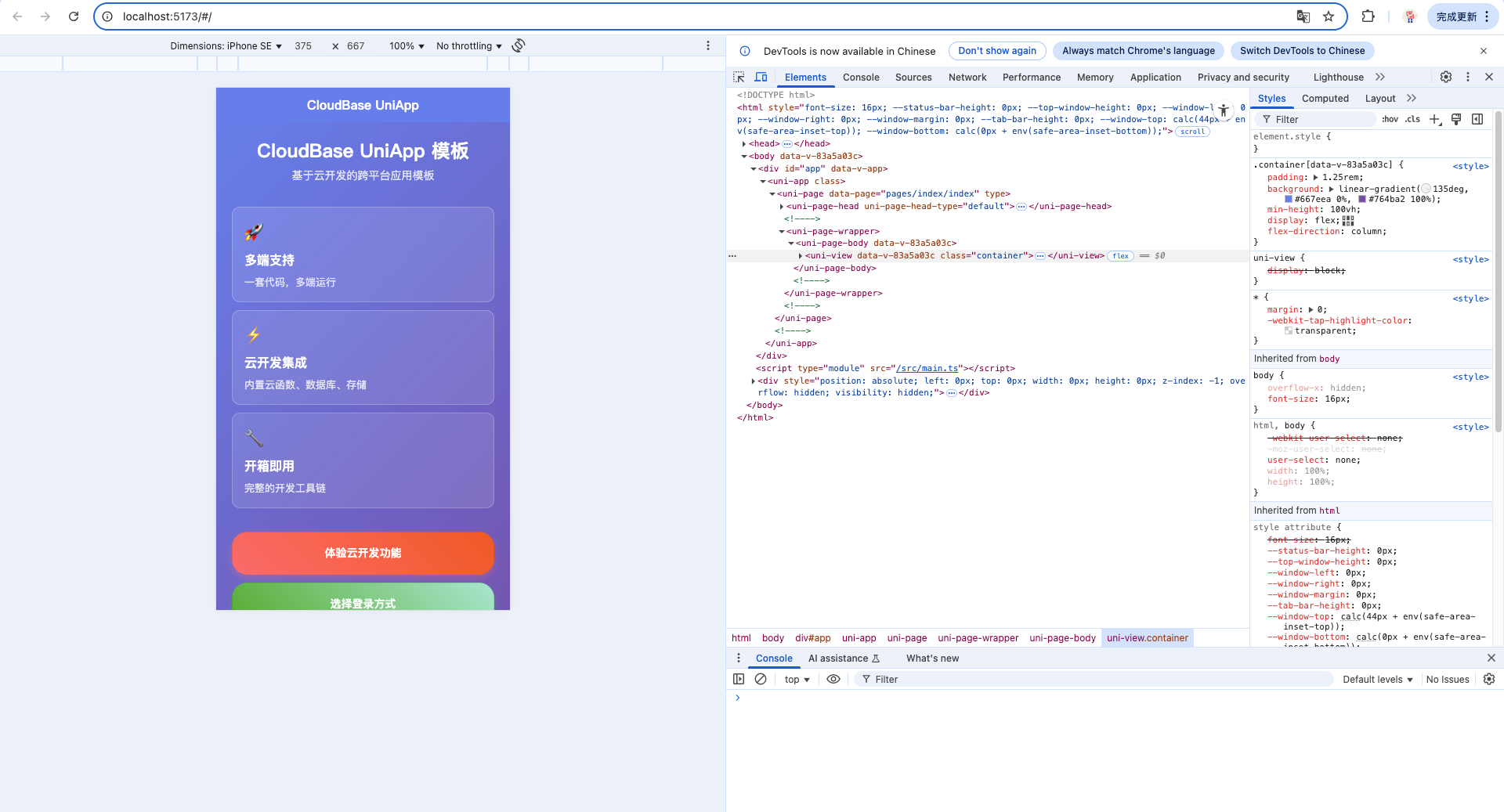 | 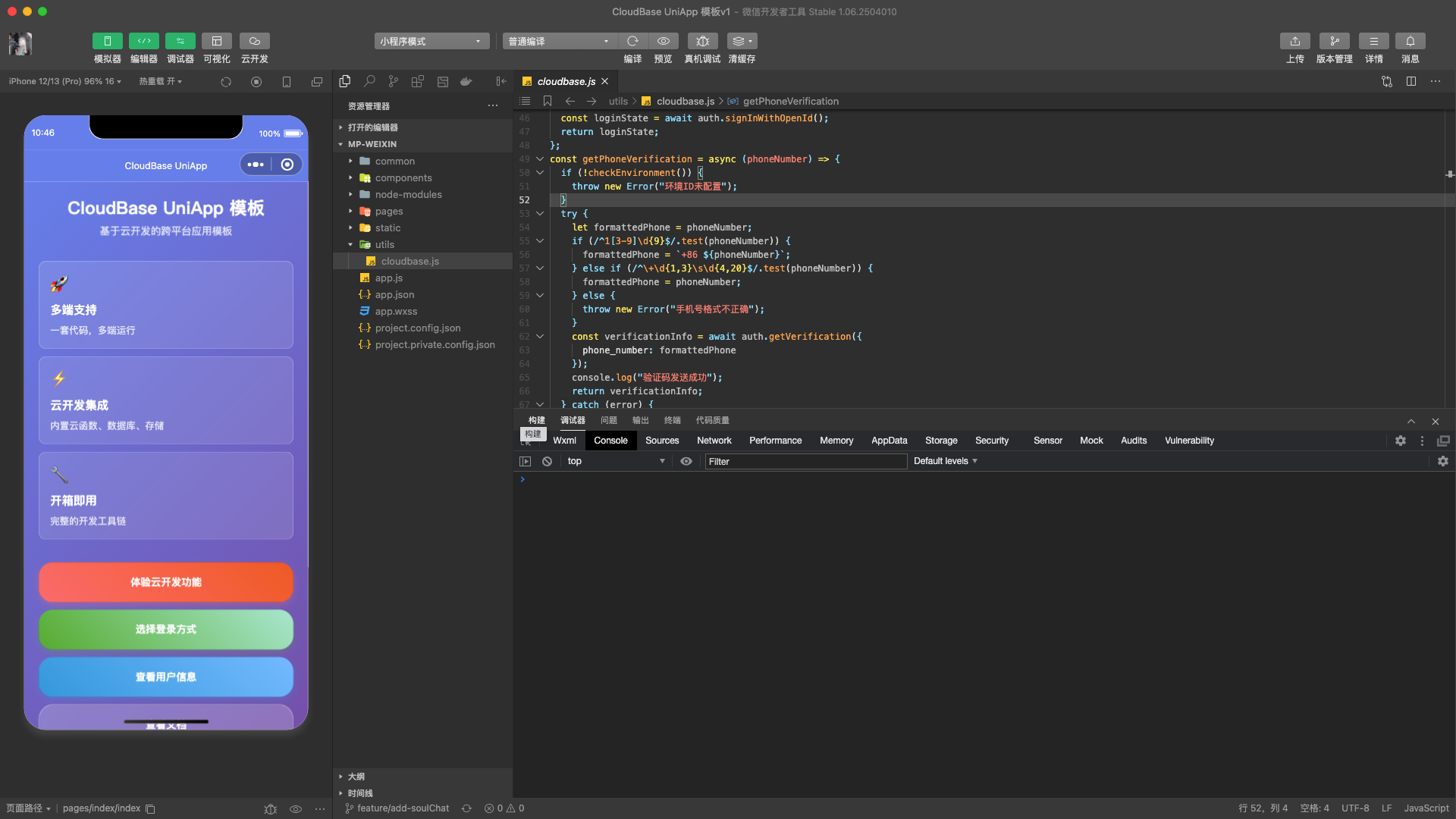 |
| Alipay Mini Program | Douyin Mini Program |
|---|---|
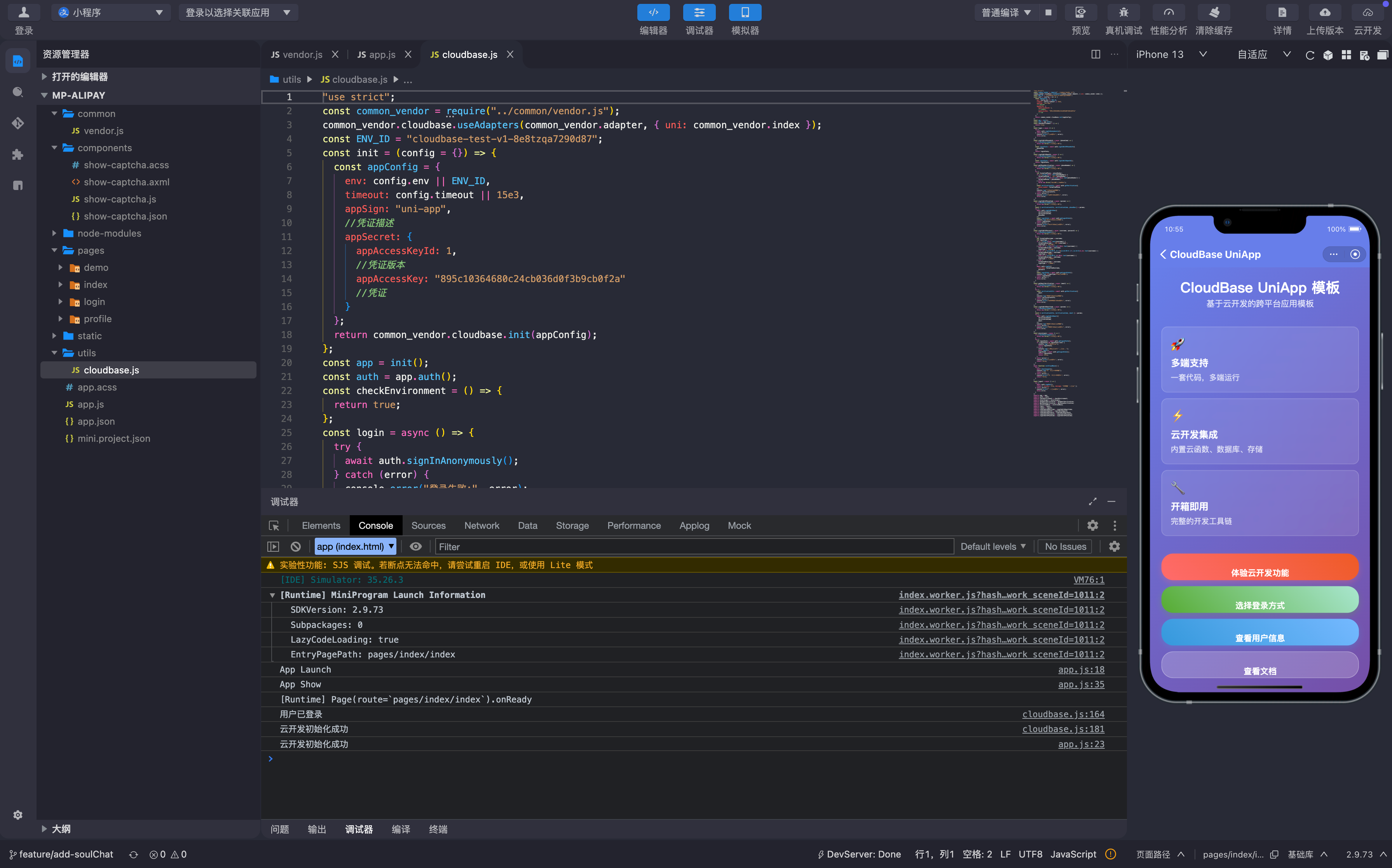 | 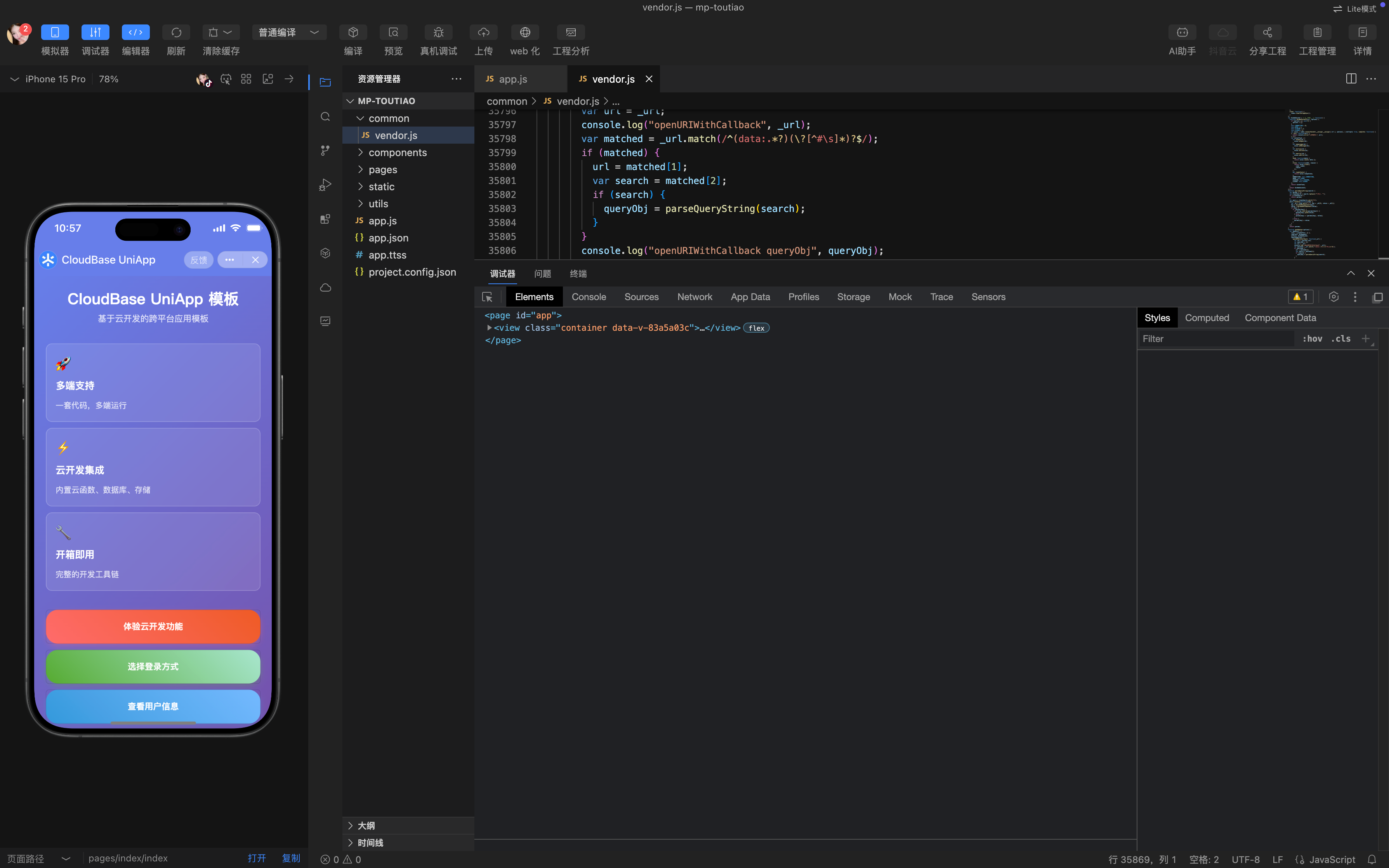 |
| Android and iOS |
|---|
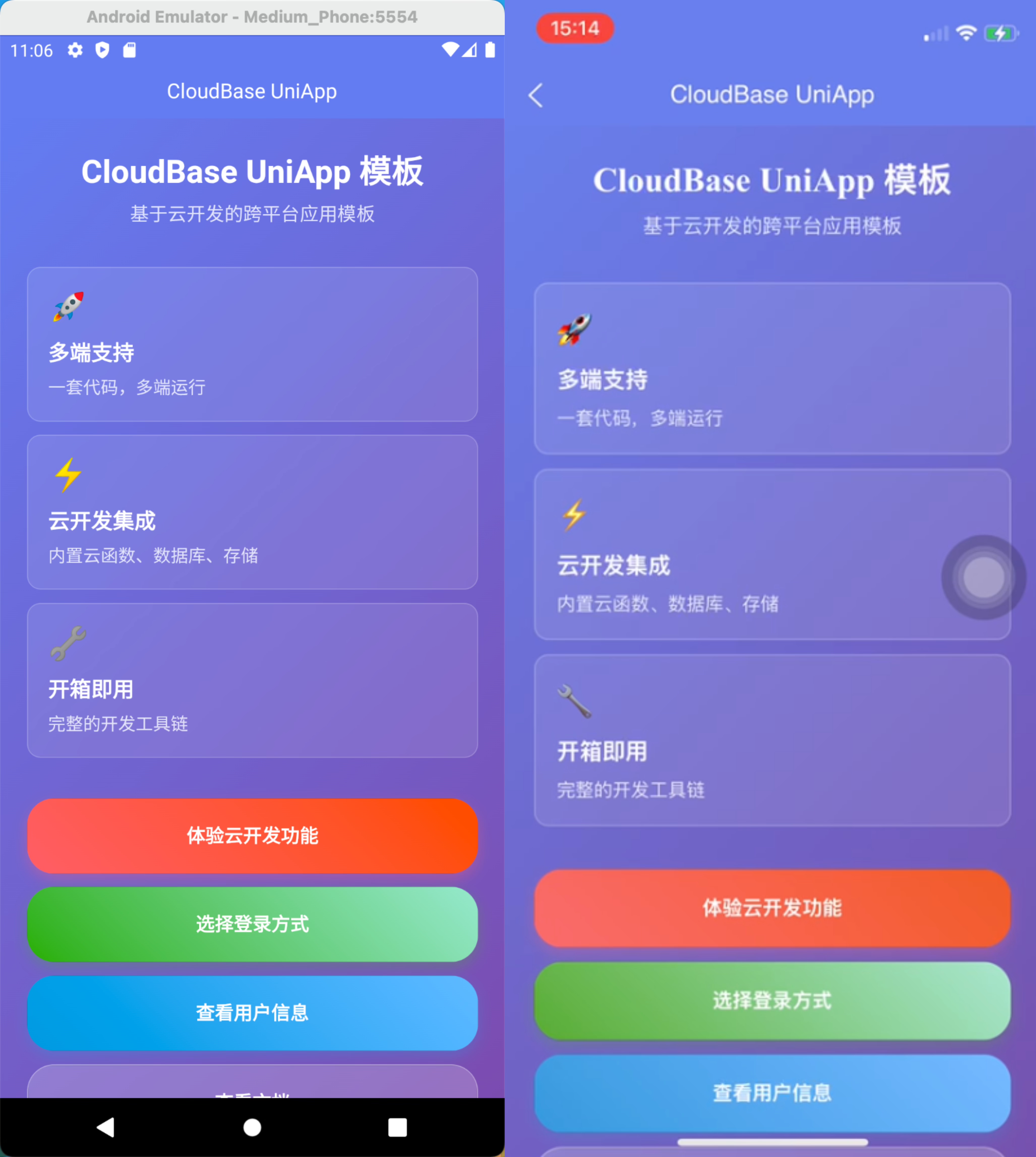 |
Installing
Install using npm:
npm install @cloudbase/adapter-uni-app
Quick Start
Adapter Configuration
If necessary to use the login feature or customize configuration, require the input of the options parameter:
Note:
After the options are imported, they can be received and used in the genAdapter within the adapter. For details, refer to Cross-Platform Development Guide.
-The uni object is necessary for processing the graphic verification code feature.
:::
import cloudbase from "@cloudbase/js-sdk";
import adapter from "@cloudbase/adapter-uni-app";

configuration passed in options
const options = {
uni: uni, // input uni object for graphic verification code
};

cloudbase.useAdapters(adapter, options);

const app = cloudbase.init({
env: "your-env-id", // Replace this value with your environment ID

// App configuration required
  appSign: "your-app-sign",
  appSecret: {
    appAccessKeyId: 1,
    appAccessKey: "your-app-access-key",
  },
});

export default app;
adaptermust be called beforecloudbase.init()-To implement login-related features, you need to pass in the UniAppuniobject.- App needs additional configuration for application identifier and credentials
Secure domain configuration
During use, the Cloud Development SDK requires verification of the origin of request legitimacy for requests sent to the cloud development service. The following is the domain configuration method for different platforms:
H5
Environment domain name:
http://localhost:local port
Configure your actual domain in the production environment.
WeChat Mini Program
Configure in [Develop] > [Development Management] > [Development Setting] > [Server Domain] in the WeChat Mini Program management backend.
request valid domain name:
https://tcb-api.tencentcloudapi.com
https://your-env-id.service.tcloudbase.com
uploadFile valid domain name:
https://cos.ap-shanghai.myqcloud.com
downloadFile valid domain name:
https://your-env-id.tcb.qcloud.la
https://cos.ap-shanghai.myqcloud.com
Please replace your-env-id with your actual environment ID, and adjust the region according to where your TCB environment resides.
Alipay Mini Program
Development environment domain name:
devappid.hybrid.alipay-eco.com
Douyin Mini Program
Development environment domain name:
tmaservice.developer.toutiao.com
App configuration
In the TCB console, go to [environment configuration] > [secure source] > [Mobile Security source] and add application.
- Application identifier:
your-app-sign - Application credentials:
your-app-access-key
const appConfig = {
  env: "your-env-id",
appSign: "your-app-sign", // Application identifier
  appSecret: {
appAccessKeyId: 1, // Credential version
appAccessKey: "your-app-access-key", // Application credentials
  },
};
Development Environment Startup
# HTML5 Development
npm run dev:h5

# WeChat Mini Program Development
npm run dev:mp-weixin

# Douyin Mini Program Development
npm run dev:mp-toutiao

# Alipay Mini Program Development
npm run dev:mp-alipay

# App (iOS/Android) Development
# Open project with HBuilderX
# 2. In the top menu bar, select Run > Run on mobile or emulator > Select your device
Currently, stable support is available for apps, H5, WeChat mini program, Douyin Mini Program, and Alipay Mini Program Platform. Platform adaptation for others is underway.
Graphic Verification Code Mechanism
In specific security-sensitive operation scenarios (such as user login), Tencent Cloud may require graphic verification code verification. UniApp Adapter handles graphic verification code interaction through the EventBridge mechanism.
Workflow
- Trigger Captcha - When cloud development detects a graphic verification code is required, it automatically calls the adapter's graphic verification code processing function.
- Parse data - The adapter parses the graphic verification code URL to extract image data, token, and status info.
- Front-end display - The frontend page displays the graphic verification code via event notification.
- User input - The user views the Captcha image and enters the answer
- Result return - The frontend sends the user input result back to the adapter via event sending
- Complete the verification - The adapter receives the result and continues the subsequent process
Internal graphic verification code processing implementation in adapter
Inside the adapter, you can access the passed in uni object and send graphic verification code data via event bus.
function genAdapter(options) {
  const adapter: SDKAdapterInterface = {
// Other adapter configurations...

    captchaOptions: {
// If Captcha is detected, auto-trigger this function
// _url is a string containing parameters such as the Captcha image, token and state
      openURIWithCallback: (_url: string) => {
// Use the passed in uni object inside the adapter
        const uni = options.uni

// Parse the Captcha parameter in the URL
        const { captchaData, state, token } = cloudbase.parseCaptcha(_url)

        return new Promise((resolve) => {
console.log('Waiting for Captcha input...')

// Send verification data to the frontend
          uni.$emit('CAPTCHA_DATA_CHANGE', {
state,      // Captcha status identifier
token,      // Captcha token
captchaData // Base64-encoded Captcha image
          })

// Listen to the verification code verification result
          uni.$once('RESOLVE_CAPTCHA_DATA', (res: {
            captcha_token: string
            expires_in: number
          }) => {
            resolve(res)
          })
        })
      }
    }
  }

  return adapter
}
Frontend Captcha handling
In your UniApp page, listen to the Captcha event and process user input.
// Listen to the Captcha event on the page
uni.$on("CAPTCHA_DATA_CHANGE", ({ state, token, captchaData }) => {
console.log("Received verification code data", { state, token, captchaData });

// Refresh the local Captcha status
  captchaState = { state, token, captchaData };

// Display the Captcha image on the page
});
FAQs
Q: Why call useAdapters before init?
A: The adapter needs to be registered before SDK initialization to ensure the SDK can correctly identify the current runtime environment and use the appropriate adapter.
Q: How to handle variations across different platforms?
A: UniApp Adapter automatically detects the current execution platform and uses the appropriate adaptation logic, so developers have no need to handle platform differences manually.
Q: How to customize styles for the graphic verification code feature?
A: The display and interaction of the graphic verification code are fully controlled by the developer. Based on your needs, you can customize the style and interaction logic of the Captcha popup.
Q: Which cloud development features are supported?
A: Support ALL core features of cloud development, including:
-Authentication (anonymous login, custom login) -Database (CRUD operations, real-time database) -File storage (file upload, download, deletion) -Cloud function -Cloud hosting