Chapter 2: Implementing Conditional Judgments
This chapter will guide how to set up and debug conditional branches for determining message or event types.
Step 1: Add Conditional Branch Node to Canvas
In the right "Node List" sidebar, drag the "Conditional Branch" node to the canvas and connect it to the node from the previous step.

Step 2: Set Branch Conditions
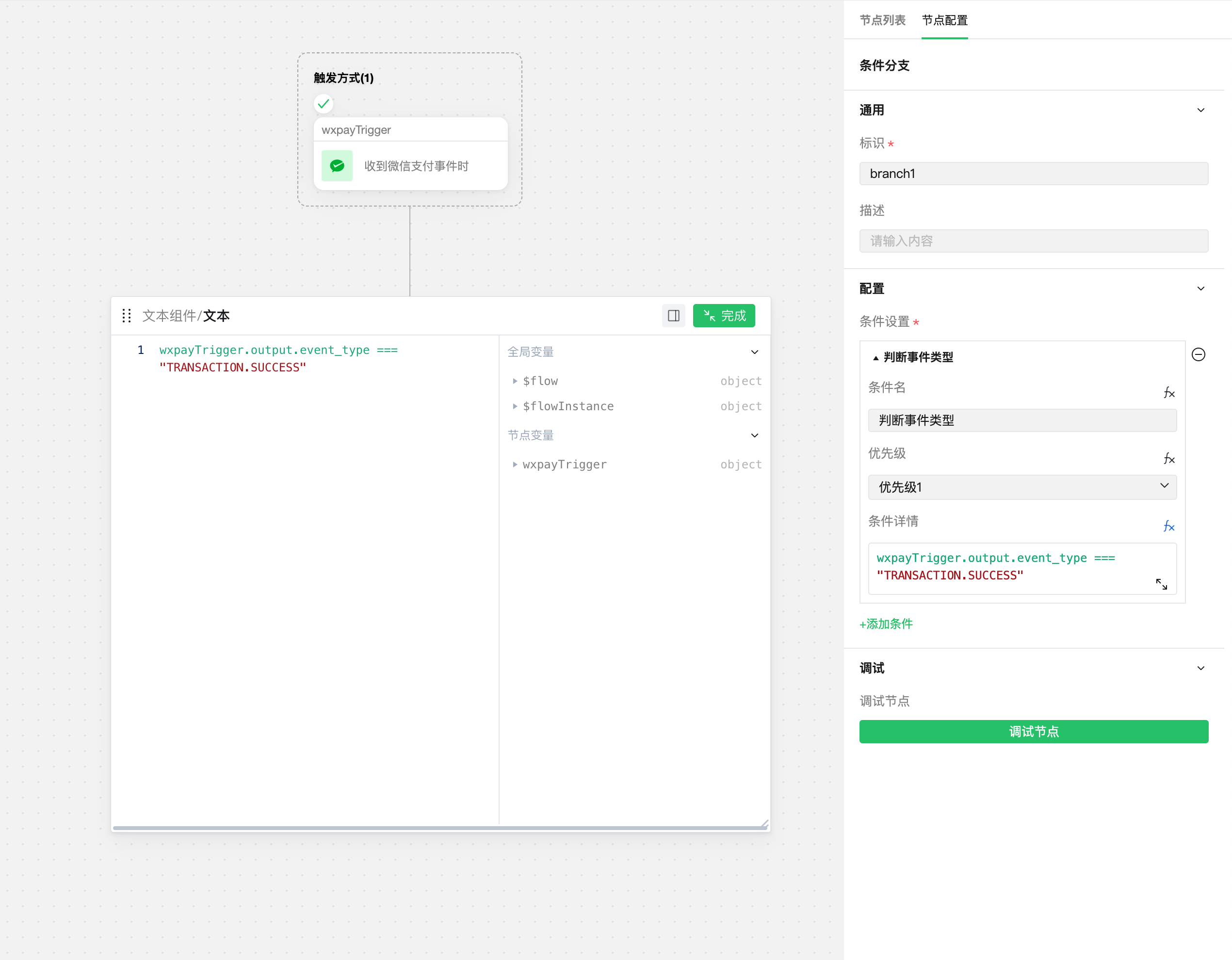
In the right "Node Configuration" panel, set conditions. For example, determine if the event type is a "Payment Notification" event.
In the expression panel, you can view global variables and node variables. Node variables refer to the input and output data of "debugged nodes" from previous paths, such as wxpayTrigger in the figure below:
Step 3: Add Downstream Nodes and Configure Connections and Branches
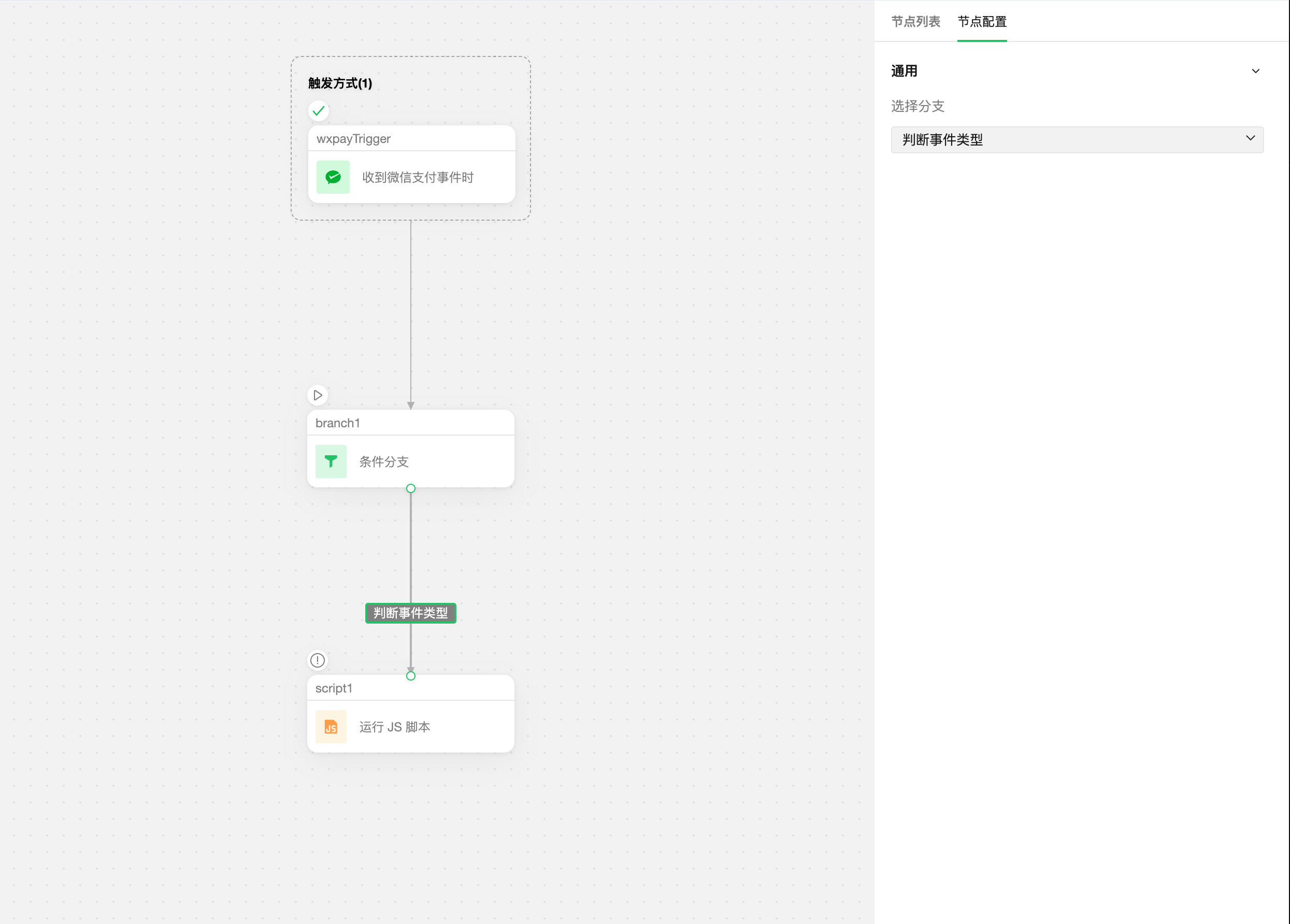
From the "Node List", select and add other downstream nodes to the canvas. After connecting, click the connection to associate the branch.
Step 4: Debug Conditional Branch
Select the "Conditional Branch" node. In the "Node Configuration" panel, click "Debug Node" to start debugging. For branches that meet the conditions, the "matched" field in the node output will be true, verifying the branch path.

Next
Next, we will learn how to run JS scripts to implement custom logic. Please proceed to Section 3: Implementing Custom Business Logic