AI-Generated Low-Code Application
Feature Introduction
AI-generated low-code applications support deployment to mini programs and web pages, enabling multi-end access.
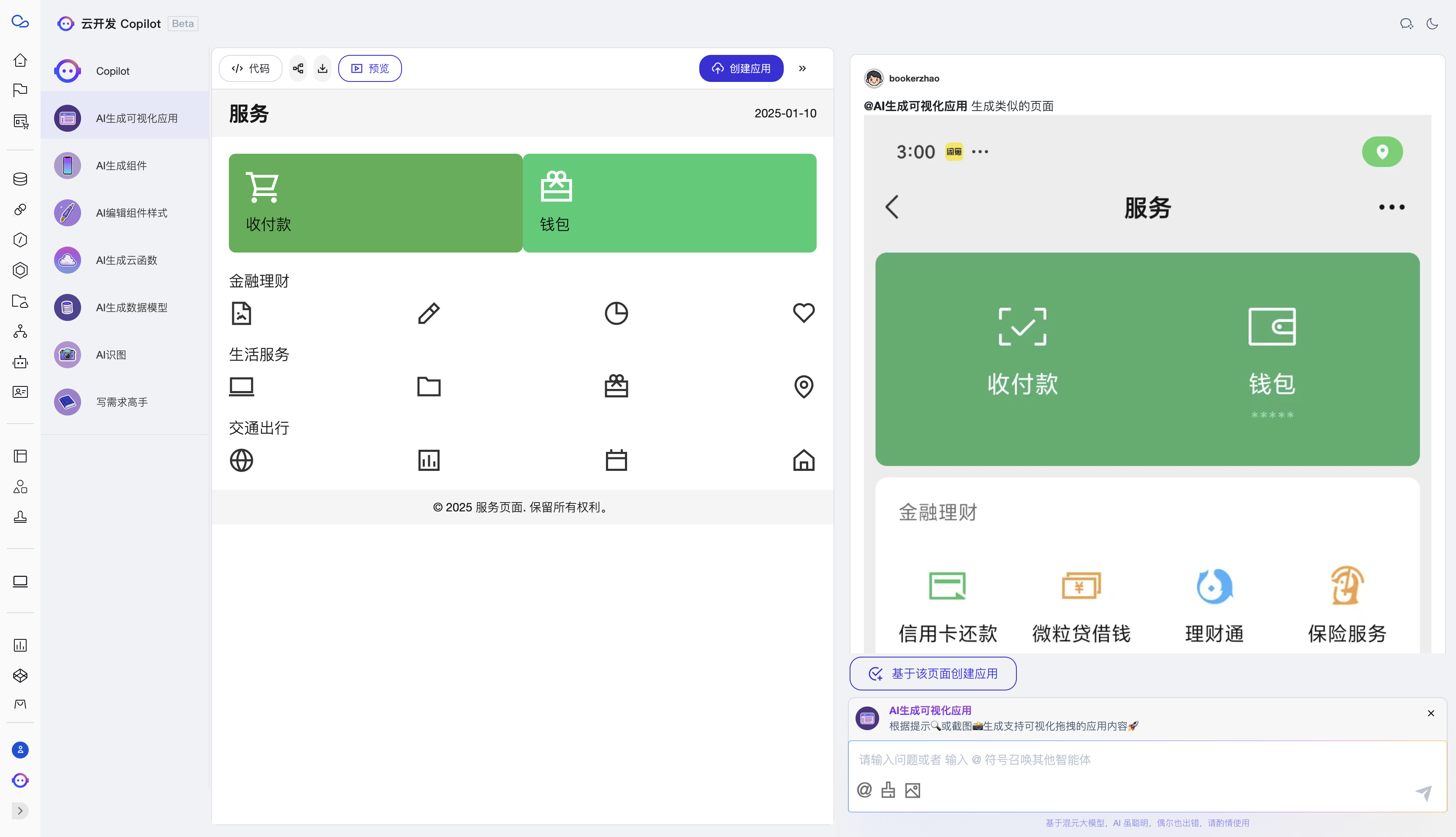
Generate Applications from Screenshots
Upload screenshots, AI identifies elements in the screenshots, and generates corresponding applications.
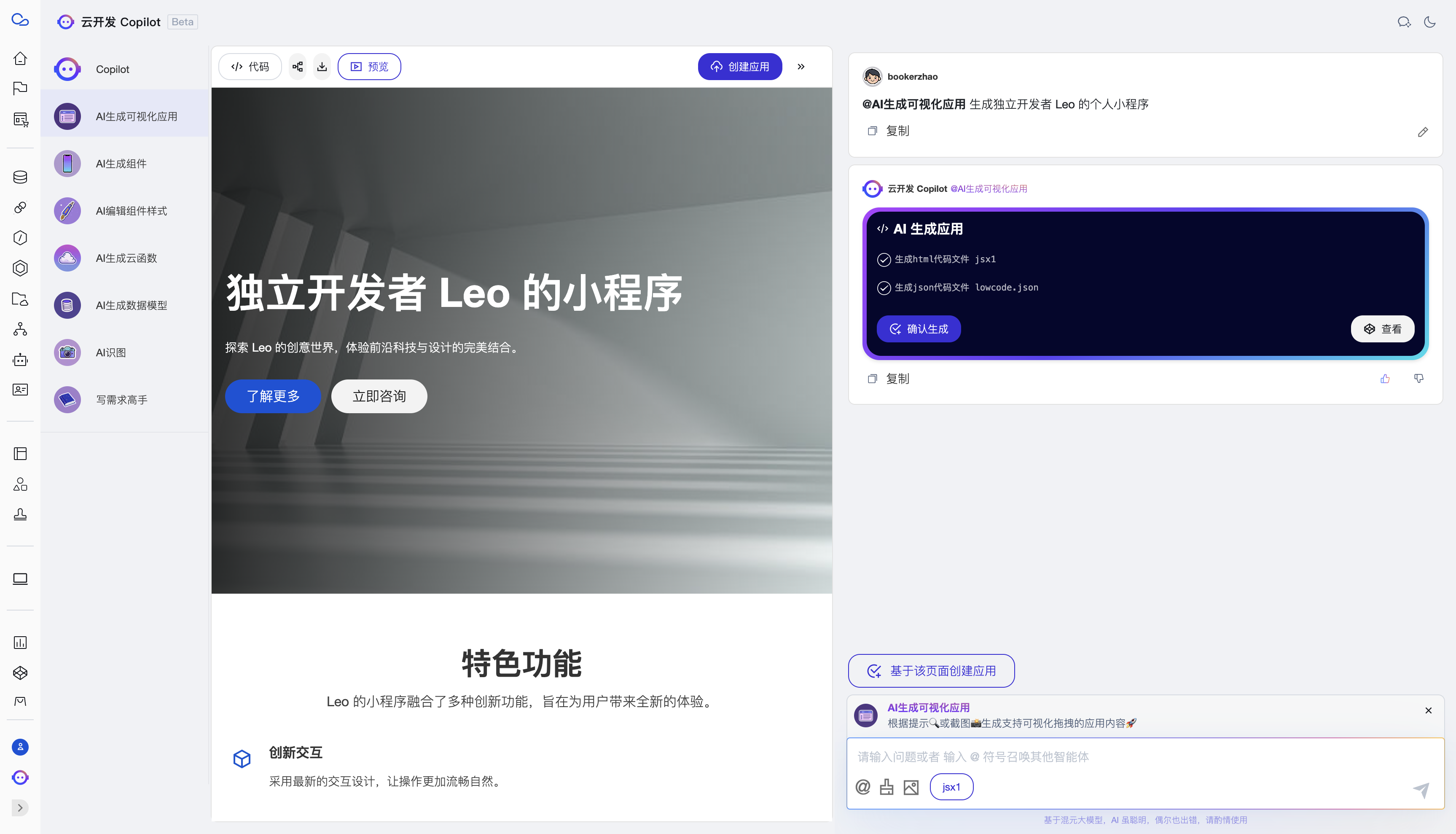
Generate Applications Based on Requirements
Enter keywords, and AI generates corresponding applications.
Generate Blocks with AI in the Current Application
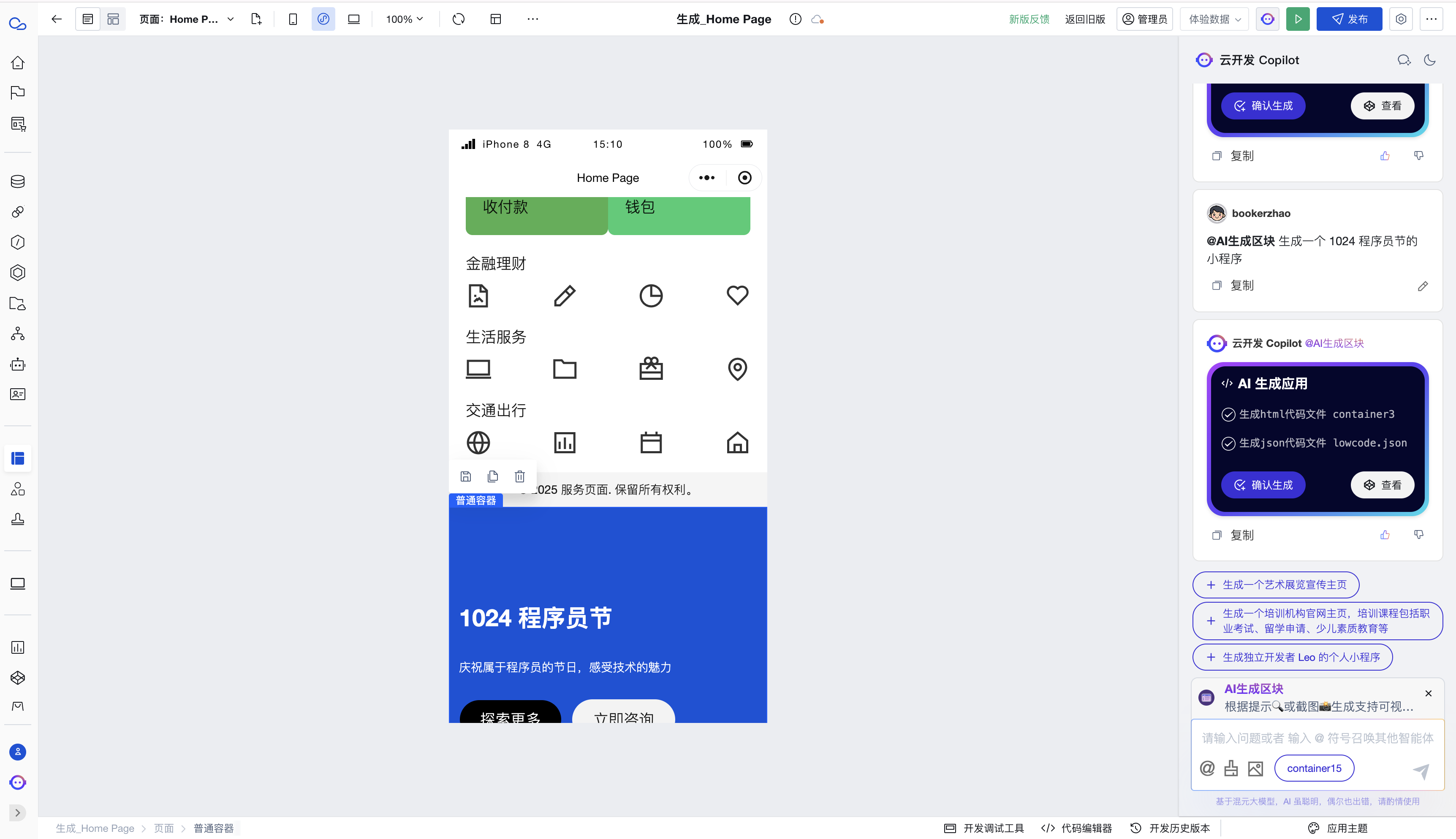
Besides generating applications, it can also generate blocks within the current page.
In the application editor, open Cloud Development Copilot, type @ to switch to AI-generated blocks, enter keywords or upload images, and generate corresponding blocks.
Click Generate to insert it into the current page.
Usage Steps
1. Open Cloud Development Copilot
- Access Cloud Development Copilot (requires a Tencent Cloud account)
- Or access Cloud Development Copilot Guest Edition
2. Switch to AI-generated visual applications/blocks
Type @, select AI-generated visualization, enter keywords, and click Generate.
3. Preview the effect and confirm generation
In the Copilot preview window, you can see the effect of the generated application. Click Confirm Generation after verifying it is correct.
4. Fine-tune the application
After generation is complete, click to enter the editor where you can make fine adjustments to the application's functions, interface, etc.
5. Publish the Application
- Publish to Mini Program: In the editor, locate the publish settings option and select the Mini Program publish channel. Follow the prompts to fill in the Mini Program details, such as the Mini Program name, AppID, etc., then click the "Publish" button. The system will automatically package and upload the code to the Mini Program platform for review and publishing.
- Publish to Web Page: Similarly, in the publish settings, select the web publishing option. After confirmation, click the "Publish" button to generate an accessible URL.